
This is annoying.
You want to put a transition on some text or some images or video above the Secondary Storyline and it affects the Primary Storyline below. The screen goes black during the transition.
There are a couple of things to try here, and I suspect this is a bug that's triggered sometimes:
1. This happened today to me. Simply re-launching FCPX fixed it.
2. Try putting what's attached to the Primary Storyline into a Secondary Storyline. Highlight it, and all clips associated with it, say if it's a series of pictures or text, then hit COMMAND + G to put it into a secondary storyline. Apply your transitions and see if they only affect the upper Secondary Storyline.
3. Still not working? Try making the content inside the Secondary Storyline a Compound Clip but highlighting them all and hitting OPTION + G. Then dig into that compound clip by clicking on it's name/title/icon bar thingy (no idea what it's actually called, but it's the top of the compound clip, just below the "Shelf" of the Secondary Storyline) and you'll be inside that Compound Clip in another Timeline.
It's like a Nest in old FCP. Apply your transitions then tap COMMAND + LEFT BRACKET to go back to the main Timeline, the one the Compound Clip is inside of.
4. Still messed up? One last thing to try is to Right-Click on the Transition itself and look to see if you can toggle "Transition to/from Black". Usually it's greyed out though for some reason.
BONUS:
- You can Right-Click on a Transition in the browser and open a copy in Motion and try and edit it. I'll save that post for another day, though.
Showing posts with label bug. Show all posts
Showing posts with label bug. Show all posts
Friday, February 19, 2016


Sunday, September 11, 2011
Final Cut Pro Freaks Out
Here's a fun Final Cut Pro Viewer glitch:

Apparently it has something to do with waking a Mac from sleep while a hard drive was spun down and some planets were aligned, or something.
A relaunch of FCP fixed it.

Apparently it has something to do with waking a Mac from sleep while a hard drive was spun down and some planets were aligned, or something.
A relaunch of FCP fixed it.
Saturday, July 9, 2011
Fixing Quicktime's Gamma Export Problem with H.264
For a LONG time now Quicktime has had an issue exporting to H.264 where it'll bump up the gamma and make your exports look brighter than it did originally. It's a long-standing bug that I'm fairly shocked hasn't been addressed yet.
A simple-ish fix is to install x264encoder from here. It's FREE.
After installing it, re-launch your export software and select "x264Encoder" from the export options and before anything else, hit the Options… in the lower left.
From there hit "Tagging".
At the top left checkmark "Add gamma 2.2 (SD/HD content)".
This will dramatically fix or at least help the gamma H.264 shifting problem.
x264encoder seems complicated but since there are some really great presets you can get amazing results, small files sizes with only a few clicks. Exports will take longer to encode though sometimes so be aware.
A great article on this is here which goes into much more detail.
For curiosity a deprecated method (in case you don't have x264 installed or have don't a connection on location) is here. x264encoder is something you should have on that flash drive in your pocket, btw.
Thanks to IK for reminding me I never posted this after mentioning it ages ago.
A simple-ish fix is to install x264encoder from here. It's FREE.
After installing it, re-launch your export software and select "x264Encoder" from the export options and before anything else, hit the Options… in the lower left.
From there hit "Tagging".
At the top left checkmark "Add gamma 2.2 (SD/HD content)".
This will dramatically fix or at least help the gamma H.264 shifting problem.
x264encoder seems complicated but since there are some really great presets you can get amazing results, small files sizes with only a few clicks. Exports will take longer to encode though sometimes so be aware.
A great article on this is here which goes into much more detail.
For curiosity a deprecated method (in case you don't have x264 installed or have don't a connection on location) is here. x264encoder is something you should have on that flash drive in your pocket, btw.
Thanks to IK for reminding me I never posted this after mentioning it ages ago.
Friday, June 24, 2011
The Clip's Master Clip Is Not Present - Error
FCP has a long standing bug where when you have the playhead in the Timeline over a clip and hit SHIFT + F for Reveal Master Clip, you'll inexplicably see this:
 Restarting FCP will not help.
Reconnecting the clip will not help.
Trashing prefs hasn't helped me in this case.
Bizarrely, the clip will be fully visible in your Browser and/or Bin yet FCP will simply not be able to find it. It may be able to find other clips in the Timeline that reside in the same Bin as the errant clip, though.
I have no solution but it's an irritating, frustrating bug.
See, with the Timeline in the foreground and placing the playhead over a clip and tapping The F Key will perform a Matchframe where the frame -and Master Clip- that the playhead is over will appear in the Viewer.
But, hitting SHIFT + F with the Timeline in the foreground and placing the playhead over a clip and tapping F will perform a Reveal Master Clip; only sometimes it will just stop working. I have no idea why.
A workaround this to find a Master Clip and have it load into the Viewer is, like I mentioned, just place the playhead over the clip, make sure the Timeline is in the foreground (active) and tap the F key. You won't see the clip in the Bin or Browser but you'll be able to scrub around to see what else the clip holds footage-wise.
It's an incomplete workaround however especially if you need to see the following and preceding clips around the clip you're interested in. You'll likely find yourself doing this a lot while cutting a documentary and know that the footage is listed chronologically; a Reveal Master Clip would show you where the clip rests in accordance to the order the clips were shot in.
Another quirk is that if you do hit OK to "add a master clip to the browser" it'll do just that; and it'll find it if you load that into the Timeline (or Viewer, Reveal Master Clip works if the Viewer is the active window as well) and perform a Reveal Master Clip. Frustrating.
So there is a solution if you're willing to add a master clip to the browser (at root level) for every clip that suffers from this bug. But there's no guarantee that it won't randomly happen again. In fact, if you do add a master clip to the browser, place some of it in the Timeline, then for fun delete the newly created master clip from the Browser, FCP will toss up the Master Clip Not Present error.

Reconnecting the clip will not help.
Trashing prefs hasn't helped me in this case.
Bizarrely, the clip will be fully visible in your Browser and/or Bin yet FCP will simply not be able to find it. It may be able to find other clips in the Timeline that reside in the same Bin as the errant clip, though.
I have no solution but it's an irritating, frustrating bug.
See, with the Timeline in the foreground and placing the playhead over a clip and tapping The F Key will perform a Matchframe where the frame -and Master Clip- that the playhead is over will appear in the Viewer.
But, hitting SHIFT + F with the Timeline in the foreground and placing the playhead over a clip and tapping F will perform a Reveal Master Clip; only sometimes it will just stop working. I have no idea why.
A workaround this to find a Master Clip and have it load into the Viewer is, like I mentioned, just place the playhead over the clip, make sure the Timeline is in the foreground (active) and tap the F key. You won't see the clip in the Bin or Browser but you'll be able to scrub around to see what else the clip holds footage-wise.
It's an incomplete workaround however especially if you need to see the following and preceding clips around the clip you're interested in. You'll likely find yourself doing this a lot while cutting a documentary and know that the footage is listed chronologically; a Reveal Master Clip would show you where the clip rests in accordance to the order the clips were shot in.
Another quirk is that if you do hit OK to "add a master clip to the browser" it'll do just that; and it'll find it if you load that into the Timeline (or Viewer, Reveal Master Clip works if the Viewer is the active window as well) and perform a Reveal Master Clip. Frustrating.
So there is a solution if you're willing to add a master clip to the browser (at root level) for every clip that suffers from this bug. But there's no guarantee that it won't randomly happen again. In fact, if you do add a master clip to the browser, place some of it in the Timeline, then for fun delete the newly created master clip from the Browser, FCP will toss up the Master Clip Not Present error.
Friday, May 6, 2011
Equalizing Audio Levels in Soundtrack Pro
A buddy of mine is working on a short film and needs lots and lots of "ambient location soundscapes" (his term :) and a few of the recordings have wildly different volume levels.
For example one recording is a person whispering between bouts of a person yelling a speech and thunderous applause. Yeah, I know; could you get any worse for post-production? Well, I did have a client once ask me if I had a "color filter" and I was like, "Yeah?" because we do but they meant something that turns black and white footage into color. I just told them yes (always say yes) but that it's VERY VERY EXPENSIVE (always say it's prohibitively expensive when you want to say no).
So, not really sure what my friend wanted this little bit of audio to sound like because they didn't either I tossed it into Soundtrack Pro, removed the background hiss/AC Unit/whatever it is via a noise print, and then used the Compressor filter.
It looks like this:

For example one recording is a person whispering between bouts of a person yelling a speech and thunderous applause. Yeah, I know; could you get any worse for post-production? Well, I did have a client once ask me if I had a "color filter" and I was like, "Yeah?" because we do but they meant something that turns black and white footage into color. I just told them yes (always say yes) but that it's VERY VERY EXPENSIVE (always say it's prohibitively expensive when you want to say no).
So, not really sure what my friend wanted this little bit of audio to sound like because they didn't either I tossed it into Soundtrack Pro, removed the background hiss/AC Unit/whatever it is via a noise print, and then used the Compressor filter.
It looks like this:

It's under Process >Dynamics I think and what this little HUD does is basically, bring up low levels and bring down high (or loud) levels.
Set the Limiter Threshold to something like -6 or -3dB (don't forget to tick the blue box to activate this slider), monkey with the Gain so overall it's at a level you like and generally bring up the Compressor Threshold a bit to clear out some background noise.
Now, some audio people are undoubtedly reading this with one eyebrow raised but yes, I know what all this stuff does but this is Quick Fix Post Friday Madness.
See the little play button to the left of the volume slider? To the right of that slider is a preview button of sorts which will toggle the audio playback with and without this filter applied so you can see if you're making things sound worse or better; it's easy to mess with stuff so much and lose track of just how much you've changed things from the original.
Hit Apply to apply.
You'll see all sorts of fun adjustments happening and when I was done with this bit of audio the whispers were loud enough to hear but not overbearing, the applause was now less room rattling and a bit of the background hum was removed as well.
Sometimes on some systems there's a bit of a nasty bug with some of these effects. Occasionally you'll hit playback to see what your changes sound like and the resultant audio will be full volume and screeching from distortion. I don't know why. A few times toggling the play button usually resolves it, I'm told.
Tuesday, April 12, 2011
No real-time playback in Multiclip
A friend is editing a two camera shoot using multiclip. The problem he's having is that there is no real-time playback when editing in multiclip no matter what he does. Out of complete desperation I drove to his place to investigate.
Looking over his project it all seems set up correctly but when you click on a clip in the Viewer it stops playback, playing via the Timeline or Canvas will not cause the clips in the Viewer to play but the thumbnails will update when playback is stopped.
Playing in the Viewer results in full-window playback of the currently selected (blue boarder) camera.
Digging around I noticed his clips are 720x402.
Suspecting that wasn't a multiclip compliant size somehow, I transcoded some clips (in the same codec) to 720x480 brought them into FCP, set the Canvas to "Correct for Aspect Ratio" and got better results.
Now, playback in the Viewer worked; it was no longer full-windowed but there was still no real-time. The Canvas would play or the Viewer, but not both concurrently.
Testing further I transcoded 60 secs of two of the camera angles to ProRes 720x480 and set Correct for Aspect Ratio. Now it all worked (well, the audio needed rendering and I didn't bother to check why); the Viewer and Canvas played in real-time together.
So the lesson here is frame size does matter. It seems that it must be a "standard" size and something listed (I guess) in the Easy Setup menu (Control + Q) to have real-time multiclip playback and editing.
I did lose Command + Z undo function on one test sequence but that seems like a FCP bug more than anything else. I did render the audio on this test sequence but Undo was still non-functional.
Looking at his Option + J (Button List) Keypad numbers are "Switch Video to Angle" while Command + (keypad number) is "Cut Video to Angle"
Looking over his project it all seems set up correctly but when you click on a clip in the Viewer it stops playback, playing via the Timeline or Canvas will not cause the clips in the Viewer to play but the thumbnails will update when playback is stopped.
Playing in the Viewer results in full-window playback of the currently selected (blue boarder) camera.
Digging around I noticed his clips are 720x402.
Suspecting that wasn't a multiclip compliant size somehow, I transcoded some clips (in the same codec) to 720x480 brought them into FCP, set the Canvas to "Correct for Aspect Ratio" and got better results.
Now, playback in the Viewer worked; it was no longer full-windowed but there was still no real-time. The Canvas would play or the Viewer, but not both concurrently.
Testing further I transcoded 60 secs of two of the camera angles to ProRes 720x480 and set Correct for Aspect Ratio. Now it all worked (well, the audio needed rendering and I didn't bother to check why); the Viewer and Canvas played in real-time together.
So the lesson here is frame size does matter. It seems that it must be a "standard" size and something listed (I guess) in the Easy Setup menu (Control + Q) to have real-time multiclip playback and editing.
I did lose Command + Z undo function on one test sequence but that seems like a FCP bug more than anything else. I did render the audio on this test sequence but Undo was still non-functional.
Looking at his Option + J (Button List) Keypad numbers are "Switch Video to Angle" while Command + (keypad number) is "Cut Video to Angle"
Wednesday, February 23, 2011
Exporting Long Clips and File Name Corruption
This happens to me frequently enough that it's more hassle than anything else. And I'm not alone on this which has been happening for some time.
For me when I export a clip that's long, say 60mins or so, FCP will occasionally fail to complete writing the file name.
For example if the clip you're exporting from FCP is supposed to be called
"A Long Clip_Version 01" which should appear as
"A Long Clip_Version 01.mov" when exported, it'll sometimes end up as
"A Long Clip_Versi#WTF.mov".
It seems more likely to happen with longer file names as well. The good news is that the file is likely 100% A-OK. The bad news is you have to rename it to what you want. Meh.
I suspect that it has something to do with temporary file names and how the Finder works. When the Finder is working with a file (actually mainly creating a file) it'll will tend to assign a semi-random name to it until it is done with the file. This is especially true if the Finder is replacing a file with a new one.

You can see this in action yourself with a tool like fseventer. There are many reasons why the Finder does this little bit of prestidigitation but one specific example (but not a hard rule) is if you change the preferences to something, the Finder won't always write the changes to the currently in-use pref file but it'll create a new one, with a random name or portion of a name, and when it's done will quickly trash the file in use and name the new one, the old name. The app using the prefs never knows the difference.
For me when I export a clip that's long, say 60mins or so, FCP will occasionally fail to complete writing the file name.
For example if the clip you're exporting from FCP is supposed to be called
"A Long Clip_Version 01" which should appear as
"A Long Clip_Version 01.mov" when exported, it'll sometimes end up as
"A Long Clip_Versi#WTF.mov".
It seems more likely to happen with longer file names as well. The good news is that the file is likely 100% A-OK. The bad news is you have to rename it to what you want. Meh.
I suspect that it has something to do with temporary file names and how the Finder works. When the Finder is working with a file (actually mainly creating a file) it'll will tend to assign a semi-random name to it until it is done with the file. This is especially true if the Finder is replacing a file with a new one.

Thursday, September 9, 2010
Audio Waveform Bug (redux)
A while ago I posted about how FCP (6.x) has trouble with displaying Audio Waveforms while it's not zoomed in. Today I ran into another interesting Audio Waveform issue again with FCP 6.x (thanks to the client's machine I'm working on).
Here's the before:

Suddenly FCP decides to show the lower audio track's waveforms all the time when it was horribly inconsistent before. In fact, it was so bad before that I wasn't able to really edit the audio precisely quickly because the waveforms would come and go. I tried restarting FCP, the Mac, clearing caches (including the waveform cache) and nothing helped until I just deleted the audio tracks that aren't needed anymore (until the client wants them back or some nonsense)
Here's the before:

You can see that only one waveform is shown and even that's fragmented. The top two audio tracks are disabled via Control + B. When I delete them since they're not needed this is the consistent result:

Suddenly FCP decides to show the lower audio track's waveforms all the time when it was horribly inconsistent before. In fact, it was so bad before that I wasn't able to really edit the audio precisely quickly because the waveforms would come and go. I tried restarting FCP, the Mac, clearing caches (including the waveform cache) and nothing helped until I just deleted the audio tracks that aren't needed anymore (until the client wants them back or some nonsense)
Wednesday, August 18, 2010
Still-Freeze Duration Bug
On a machine I still have Final Cut 6.0.6 installed I keep running into a bug with Still-Freeze Durations.
The duration Final Cut assigns an imported still image is determined by the Editing tab of the User Preferences (Option + Q).

However, for me in Final Cut Pro (and if I'm recalling correctly, versions after 5.0) the Still portion of Still/Freeze Duration doesn't exactly work.
In my experience when you import a still image FCP will set it's duration to exactly one second less than what's set in the Editing prefs. The Freeze duration will be correct however, meaning that if you have a clip loaded into the Viewer and hit Shift + N to make a freeze frame it'll be whatever the Editing tab's Still/Freeze Duration is set to.
But, if you say, drag a photo into the bin it'll be one second shorter.

On the left is the bin, on the right is the preference. For me, it's consistent.
The duration Final Cut assigns an imported still image is determined by the Editing tab of the User Preferences (Option + Q).
However, for me in Final Cut Pro (and if I'm recalling correctly, versions after 5.0) the Still portion of Still/Freeze Duration doesn't exactly work.
In my experience when you import a still image FCP will set it's duration to exactly one second less than what's set in the Editing prefs. The Freeze duration will be correct however, meaning that if you have a clip loaded into the Viewer and hit Shift + N to make a freeze frame it'll be whatever the Editing tab's Still/Freeze Duration is set to.
But, if you say, drag a photo into the bin it'll be one second shorter.

On the left is the bin, on the right is the preference. For me, it's consistent.
Thursday, August 12, 2010

Tuesday, February 23, 2010
Viewer Graphical Bug

Someone emailed me this image asking if I had seen anything like it before. I said not exactly; but it does look like something that can occur when running FCS on an underpowered video card. I have no real idea but the emailer said it cleared up when they hit the spacebar to resume playback in the Viewer.
Tuesday, January 26, 2010
Rendering a keyframed cropping results in missing image
This bit me tonight and I have no idea what caused it.
I have four elements, Text, Text, Image, Image all on separate layers. The two text elements are keyframed to move a bit and the first image is keyframed to move in sync with the text. The other image is keyframed independently. It's all very basic.
The mini-sequence has a green Preview render bar over it and plays as expected but when it's fully rendered the first image, the one keyframed to the text's movement VANISHES. And I'm not alone; I found a post about it here from Feb. 6th 2009:
What's interesting is his keyframing seems very similar to what I was doing with this image. At first I thought I goofed and had the "reveal" keyframes going in the wrong -opposite direction- but they weren't.
What didn't work was re-launching FCP, deleting render files, toggling track visibility or rebooting the Mac. What DID work was right-clicking on the image file in the timeline, selecting Remove Attributes...and ticking Crop and then hitting Okay to remove all cropping of the image.
I then re-did the keyframe cropping, rendered and it was fine.
I have four elements, Text, Text, Image, Image all on separate layers. The two text elements are keyframed to move a bit and the first image is keyframed to move in sync with the text. The other image is keyframed independently. It's all very basic.
The mini-sequence has a green Preview render bar over it and plays as expected but when it's fully rendered the first image, the one keyframed to the text's movement VANISHES. And I'm not alone; I found a post about it here from Feb. 6th 2009:
Help!!! Let's see if I can explain this....I have taken a clip and placed it on the timeline. I applied some croping elements to it and motion...it starts our as a very thin line and then moves up and down to create a rectangle. I can view it on the timeline but the minute I render it with "full" and then view it, it no longer exists....When I export it to make a Quicktime it is gone....
What's interesting is his keyframing seems very similar to what I was doing with this image. At first I thought I goofed and had the "reveal" keyframes going in the wrong -opposite direction- but they weren't.
What didn't work was re-launching FCP, deleting render files, toggling track visibility or rebooting the Mac. What DID work was right-clicking on the image file in the timeline, selecting Remove Attributes...and ticking Crop and then hitting Okay to remove all cropping of the image.
I then re-did the keyframe cropping, rendered and it was fine.
Wednesday, December 30, 2009
Smoothcam Bug in FCP7?
Some people are finding that smoothcam when exported from FCP 7 doesn't export as seen in the viewer or canvas.
A friend just ran into this issue and is now reverting back to FCP 6 and then Leopard (10.5.x) to see which causes the problem if either.
A friend just ran into this issue and is now reverting back to FCP 6 and then Leopard (10.5.x) to see which causes the problem if either.
Wednesday, December 23, 2009
Final Cut Pro 6.x + Snow Leopard means your gamma is wrong

FCP's Viewer vs. Quicktime Player 7
If you use FCP 6.x and Snow Leopard your Gamma onscreen in the Canvas and Viewer is likely wrong. Here's some more info about it.
FCP corrects for viewing at 2.2 gamma, so when you're using Leopard or earlier which has 1.8 gamma everything is okay. But, since Snow Leopard defaults to 2.2 gamma, FCP is over correcting the gamma.
If you have FCP 6.x and Snow Leopard check it out yourself. Open up a file in FCP, then also open it in QT 7 and compare the images. Toggle "Enable FCP compatibility" in QT Player 7 as well. Compare the gamma of the images.
Bottom line, if at all possible correct your work on a broadcast/production monitor or just burn off a DVD and pop it into your player and take a look at it.
Conversely, you may see a similar issue with FCP7 and Leopard.
If you don't do anything else, at least learn to use the Vectorscope and Waveform Monitor and correct using those.
Sunday, December 13, 2009
Audio Waveforms Only Display When Zoomed
In FCP 6.0.6 I've mentioned the audio waveform display bug before, but here's a new twist to an old problem.
In the Timeline one set of audio will display the waveform while another one won't. They're identical as far as I can see and in fact, were recorded at the same time only on two separate yet identical cameras.
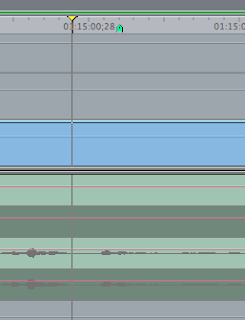
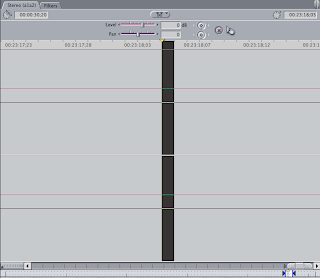
That's what it looks like in the Timeline. The upper channels are flatlined, but if you load that audio clip into the Viewer you'll see something like this:
Now, if you zoom in one more iteration you'll see the waveform:
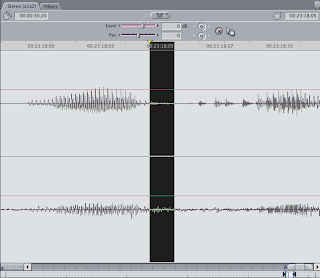
Most of the time quitting and relaunching FCP (6.0.6) will clear this up but not always. Trashing the waveform cache can help as well but it's not a 100% guaranteed fix.
In the Timeline one set of audio will display the waveform while another one won't. They're identical as far as I can see and in fact, were recorded at the same time only on two separate yet identical cameras.

That's what it looks like in the Timeline. The upper channels are flatlined, but if you load that audio clip into the Viewer you'll see something like this:

Now, if you zoom in one more iteration you'll see the waveform:

Most of the time quitting and relaunching FCP (6.0.6) will clear this up but not always. Trashing the waveform cache can help as well but it's not a 100% guaranteed fix.
AUgraphicEQ's Battle of the Bands

I've never been able to get the AUgraphicEQ audio filter's 10 Band setting to work. It's either a bug or something I'm unaware of. When I set the pull-down to 10 Bands nothing changes...the sliders aren't reduced in number nor are they linked so it's effectively only 10 bands.
I have heard from some others that it works in other applications but not using those apps I have no idea really. It may just be a filter in those apps with the same name. In FCP, the 10 band setting seems to have no effect.
QUICK TIP: While playing back an edit and having this or other filters active, you can use a mouse like the Mighty Mouse to adjust the sliders in real time during playback when normally it would stop if you click and drag on a slider. Just position the cursor over a slider and use your scroll wheel/ball...just don't click or playback will likely stop.
Sunday, December 6, 2009
The Clipboard vs Multiclips
Here's an odd behavior: When you have a sequence with edited multiclips/multicam and you set an IN point in the Timeline right in the middle of a cross-dissolve and an OUT point somewhere else, the contents of the clipboard may not be what you expect.
If you've previously copied a section of the Timeline to the clipboard that copy will remain untouched in the clipboard if the new copy's IN point is on a cross-dissolve. The new copy won't be on the clipboard. You'll paste the older previous contents.
To copy from the IN point you want on the cross-dissolve you seemingly need to remove the cross-dissolve and then hit Command + C again. Or, copy from an IN point that's not on a cross-dissolve.
Likewise, if the OUT point is on a cross-dissolve the clipboard won't copy the current selection but will retain the previous copy.
Bug or something I'm doing wrong or expected behavior? I dunno. It makes sense in that at a cross-dissolve in an uncollapsed multicam Timeline FCP can't know which camera angle you want, but should (in theory) just copy what's on screen mid-dissolve but this would require it to make an non-affiliated clip in the process. Yikes.
Tuesday, December 1, 2009
Waveform Indicator Brightness Slider Bug

If you have a Mighty Mouse and you scroll left or right over the Video Scopes' Display and Scales brightness adjust slider the slider will move to the far left and right but the brightness of the actual Video Scopes won't be adjusted.
Just a quickie a friend noticed under 10.5.6 and FCP 6.0.6 and emailed me about.
Tuesday, November 3, 2009
FCP's Scroll Box Bug
Here's a quickie:

When you scroll while audio is playing in the Viewer with Apple's (now EOL'd) Mighty Mouse the display in the Viewer will be clean. However, if you scroll with the Viewer's Scroll Box slider you'll usually see artifacts like those above. I'm not sure what causes the redraw issue. Maybe some combo of hardware.

When you scroll while audio is playing in the Viewer with Apple's (now EOL'd) Mighty Mouse the display in the Viewer will be clean. However, if you scroll with the Viewer's Scroll Box slider you'll usually see artifacts like those above. I'm not sure what causes the redraw issue. Maybe some combo of hardware.
Sunday, October 11, 2009
Snow Leopard and Desktop Preview - Main
A few people (including me) have noticed quite dramatic artifacts when playing a project using Desktop Preview - Main under snow leopard. The artifacts look like quickly flickering horizontal lines which do not hold their positions when you stop and then start playback again.
I'm not sure what the exact combination of things causes the artifacts but it's something that appears for some people when under 10.6.1 but doesn't when booted from 10.5.8. Using either FCP6 or 7 doesn't seem to matter, it seems to be related to Snow Leopard.
I'm not sure what the exact combination of things causes the artifacts but it's something that appears for some people when under 10.6.1 but doesn't when booted from 10.5.8. Using either FCP6 or 7 doesn't seem to matter, it seems to be related to Snow Leopard.
Subscribe to:
Posts (Atom)


 Posts
Posts

