
I ran into this recently and it threw me for a loop.
A client kept saying that they were seeing the old version of a short video when viewed in their browser via a direct link. I checked it it was the newer version.
We ran through all the cache clearing stuff, relaunching the browser, rebooting her computer and even trying another browser but no luck; they kept seeing (and me hearing over the phone) the older version.
Snooping around (which means calling a bunch of friends) I found out that they too, were seeing the old version. This was insane. Until one friend hit some keys and like magic I heard the new version playing over the phone.
Me - "Okay, what's that worth to me you're thinking, right?"
So-Called Friend - "Yeah, I was thinking a free lunch. I like those."
Long pause...
Me - "Fine."
So-Called Friend - "Any place?"
Me - "Any place."
So-Called Friend - "Cool. Meet me at (his favorite place) for lunch and I'll tell you there."
Evil.
At lunch, he goes, "Put a question mark at the end of your url. It'll trick the ISP into serving up the right version and bypass their cache."
I tried it. It worked. The client's ISP sucks. So I billed my friend's free lunch to the client. Shhhh...
Showing posts with label quicktime. Show all posts
Showing posts with label quicktime. Show all posts
Wednesday, December 12, 2012


Thursday, April 26, 2012
QuickTime Player Still Image Export Bug
I'm not sure if I've posted about this before but QuickTime Player 7 (Pro) has a bit of an odd bug in Snow Leopard and later with Preview.
1. Open up a movie and hit Command + E for Export.
2. Under the Export pull-down select "Movie to Picture".
3. Hit the Options button and select any standard image file format, like PNG or TIFF.
4. Notice that the name of the file ends with .pct no matter what.
5. Export the still image.
6. In the Finder, Get Info (Command + I) on the image. Notice it's a "QuickDraw picture"
7. Try opening it with Preview and behold this:

So Get Info on Preview and toggle this tick box:

so that Preview opens up in 32-bit mode.
TaaDaa now the image will open.
But what if you try to open it in Photoshop CS5?

How's that for helpful?
Oddly, if you QuickLook (Spacebar while it's highlighted) the Finder will preview the image.
So what's going on?
QuickTime Player 7 has an export bug relating to exporting still images from video files. It's some combination of the player, the version of the OS (the bug is less buggy in 10.5.x) and later versions of Preview. I suspect that the way the file is written and/or it's format is deprecated now days and likely has been since 10.4 or thereabouts.
The problem (if you're curious) is how PICT files are constructed. Think of them as PostScript for images in a way. When you run the Terminal command "file" on a QuickDraw picture you'll just see "data" as the result. Which is accurate since the data in the image file is (kinda sorta) just coordinates of how to "draw" that image. Wild, eh?
Now, if a client has handed you a pile of these images what do you do?
Three viable options:
1. Open them in Photoshop CS4 - Not guaranteed to work on a given OS however.
2. Use GraphicConverter - Yes, it's still around.
3. Use Preview by switching it to 32bit mode and then doing a batch convert if you have many of these files. Here's a post about that right here.
Now, you may be asking what the best way to export stills from a video file is? I'd suggest MPEG Streamclip which works nicely and lets you export to formats like TIFF, PNG and Jpeg.
1. Open up a movie and hit Command + E for Export.
2. Under the Export pull-down select "Movie to Picture".
3. Hit the Options button and select any standard image file format, like PNG or TIFF.
4. Notice that the name of the file ends with .pct no matter what.
5. Export the still image.
6. In the Finder, Get Info (Command + I) on the image. Notice it's a "QuickDraw picture"
7. Try opening it with Preview and behold this:

So Get Info on Preview and toggle this tick box:
so that Preview opens up in 32-bit mode.
TaaDaa now the image will open.
But what if you try to open it in Photoshop CS5?

How's that for helpful?
Oddly, if you QuickLook (Spacebar while it's highlighted) the Finder will preview the image.
So what's going on?
QuickTime Player 7 has an export bug relating to exporting still images from video files. It's some combination of the player, the version of the OS (the bug is less buggy in 10.5.x) and later versions of Preview. I suspect that the way the file is written and/or it's format is deprecated now days and likely has been since 10.4 or thereabouts.
The problem (if you're curious) is how PICT files are constructed. Think of them as PostScript for images in a way. When you run the Terminal command "file" on a QuickDraw picture you'll just see "data" as the result. Which is accurate since the data in the image file is (kinda sorta) just coordinates of how to "draw" that image. Wild, eh?
Now, if a client has handed you a pile of these images what do you do?
Three viable options:
1. Open them in Photoshop CS4 - Not guaranteed to work on a given OS however.
2. Use GraphicConverter - Yes, it's still around.
3. Use Preview by switching it to 32bit mode and then doing a batch convert if you have many of these files. Here's a post about that right here.
Now, you may be asking what the best way to export stills from a video file is? I'd suggest MPEG Streamclip which works nicely and lets you export to formats like TIFF, PNG and Jpeg.
Saturday, July 9, 2011
Fixing Quicktime's Gamma Export Problem with H.264
For a LONG time now Quicktime has had an issue exporting to H.264 where it'll bump up the gamma and make your exports look brighter than it did originally. It's a long-standing bug that I'm fairly shocked hasn't been addressed yet.
A simple-ish fix is to install x264encoder from here. It's FREE.
After installing it, re-launch your export software and select "x264Encoder" from the export options and before anything else, hit the Options… in the lower left.
From there hit "Tagging".
At the top left checkmark "Add gamma 2.2 (SD/HD content)".
This will dramatically fix or at least help the gamma H.264 shifting problem.
x264encoder seems complicated but since there are some really great presets you can get amazing results, small files sizes with only a few clicks. Exports will take longer to encode though sometimes so be aware.
A great article on this is here which goes into much more detail.
For curiosity a deprecated method (in case you don't have x264 installed or have don't a connection on location) is here. x264encoder is something you should have on that flash drive in your pocket, btw.
Thanks to IK for reminding me I never posted this after mentioning it ages ago.
A simple-ish fix is to install x264encoder from here. It's FREE.
After installing it, re-launch your export software and select "x264Encoder" from the export options and before anything else, hit the Options… in the lower left.
From there hit "Tagging".
At the top left checkmark "Add gamma 2.2 (SD/HD content)".
This will dramatically fix or at least help the gamma H.264 shifting problem.
x264encoder seems complicated but since there are some really great presets you can get amazing results, small files sizes with only a few clicks. Exports will take longer to encode though sometimes so be aware.
A great article on this is here which goes into much more detail.
For curiosity a deprecated method (in case you don't have x264 installed or have don't a connection on location) is here. x264encoder is something you should have on that flash drive in your pocket, btw.
Thanks to IK for reminding me I never posted this after mentioning it ages ago.
Monday, May 23, 2011
Making 1920 x 1080 smaller and keeping the aspect ratio
Just a quick note, when you want to make 1920 x 1080 smaller but keep the same aspect ratio here are the most common sizes:
1080/1920 = 0.5625
For 1920 they're:
1920 x 1080
1440 x 810
960 x 540 (this is half-size)
480 x 270
240 x 135
720/1280 = 0.5625
For 720 they're:
1280 x 720
960 x 540
640 x 360 (this is half-size)
320 x 180
160 x 90
424/640 = 0.6625
For 640 they're:
640 x 424
480 x 318
320 x 212 (this is half-size)
160 x 106
80 x 53
If you like math I posted something about how to calculate your own aspect ratio sizes years ago here.
1080/1920 = 0.5625
For 1920 they're:
1920 x 1080
1440 x 810
960 x 540 (this is half-size)
480 x 270
240 x 135
720/1280 = 0.5625
For 720 they're:
1280 x 720
960 x 540
640 x 360 (this is half-size)
320 x 180
160 x 90
424/640 = 0.6625
For 640 they're:
640 x 424
480 x 318
320 x 212 (this is half-size)
160 x 106
80 x 53
If you like math I posted something about how to calculate your own aspect ratio sizes years ago here.
Thursday, March 31, 2011
Keeping Hard Drives Spinning for Free (and fun)
I've been "in the field", literally on-location and during setups I get bored. No internet per se, and not many games on the laptop I have sitting here. I've noticed that the external hard drives here will spin down after 5mins or so of inactivity and it's annoying to have to wait for them to spin up when I decide to do something in FCP, so I tried a few things to keep them spinning.
There are things out there like Disksomnia which are FREE and work but if you don't have internet and are as bored as I am you wanna start messing around.
One simple (yet fairly inefficient) solution I found was to have Quicktime Player loop a file that's placed on the drive that's spinning down.
1. In FCP drop in an audio Slug. Video Generators > Slug
2. Export it as an .aiff to the hard drive that keeps spinning down.
3. Open it in Quicktime Player and set it to loop (Command + L).
4. Hide Quicktime Player (Command + H).
It's not efficient because while it works silently in the background it will eat up a significant bit of CPU if you check it with Activity Monitor; but still, it's free and something that can be done with (arguably if you have the now optional QT7 install, installed) what you already have.
There are things out there like Disksomnia which are FREE and work but if you don't have internet and are as bored as I am you wanna start messing around.
One simple (yet fairly inefficient) solution I found was to have Quicktime Player loop a file that's placed on the drive that's spinning down.
1. In FCP drop in an audio Slug. Video Generators > Slug
2. Export it as an .aiff to the hard drive that keeps spinning down.
3. Open it in Quicktime Player and set it to loop (Command + L).
4. Hide Quicktime Player (Command + H).
It's not efficient because while it works silently in the background it will eat up a significant bit of CPU if you check it with Activity Monitor; but still, it's free and something that can be done with (arguably if you have the now optional QT7 install, installed) what you already have.
Thursday, March 18, 2010
Get Info vs Movie Inspector

Ever notice that sometimes the file size shown in QuickTime's "Movie Inspector" window and the Finder's "Get Info" window are different for the same file?
There's probably some good reason.
Tuesday, February 16, 2010
When the Client can't Play the QuickTime File

If you haven't gotten this 3am phone call yet...you will in time. It's inevitable.
A client will one day call you late into a quiet evening saying they can't play the QuickTime files you've sent them. Since they need them in HD and regular DVD's can't (technically unless you mix HD-DVD with some prestidigitation) do HD content you need to send them something they can use...NOW! THE PRESENTATION IS IN 10 HOURS ZOMG!!!1!!1!
You have two options overall:
Send 'em a disc:
1. Send them a Blu-Ray. But, wherever they're playing the thing it won't have Blu-Ray so don't even bother. Seriously. Check this link in a year or seven for updates.
2. Send them a data DVD, wait I should hyphenate that, a data-DVD and tell them to play it on their MacBook Pro hooked up to a projector or whatever using QuickTime or VLC. However, it's likely they won't have a Mac/it won't mount/the file won't play/the projector won't see the laptop... It's possible that not even "marketing" will have a Mac nor will the "creatives" over in advertising. They can edit in After Effects anyway, right?
So you need to send HD content to someone with a PC who is likely still using XP who can't download much at work because the IT guys are scared of those darned h@x0rz who are gonna steal all their creative sekr3tz.
Send 'em a file:
Flash drives are cheap. Macs understand FAT-32 (but not NTFS fully, sorry). I mail flash drives to clients regularly.
I don't allow clients to have .wmv's or .flv's. I don't. I'm like that because I'm not a huge fan of either format, neither is any good and few clients (or the presenters at least) have the cpu to play them smoothly since they're using 48 year old laptops issued by the company that sometimes don't even have CD-ROM drives (but that's for another post/rant).
It's for the client's own good really and I tell them as much. See, your job as editor/shooter/writer/person-who-knows-stuff is to not just deliver what the client wants, but let them know what they want because 99.9854% of the time they have no idea. Dale Carnegie said people are just waiting to be told what to do, and with corporate clients it's thricely true. They need guidance because without it they'll suggest their son or nephew or daughter or someone can do it. They play with neckties and Lotus Notes all day in between bouts of blackberry gazing, lunch an "officeing", they don't know. And honestly, they don't care, they just want it to work. NOW!!!!!...
That's for corporate things; for broadcast or features hand them exactly what they ask for. That way, when it goes ka-bleewy, they can only blame themselves.
So, a real option is to export the HD project as one of the following files:
Animation. Huge files.
Motion JPEG. I've had PC people complain that the video "stutters."
Apple Video. Should work, people seem reluctant.
ProRes. They'll have to download the free codec from Apple.
I'd go with Animation or ProRes for the project. These are easily transcoded to something else. Others work, sure but these are the most reliable I've found. If they're going to play it from a laptop these are good options except for maybe Animation which likes lots of CPU. If they want a standard DVD, tell them that it won't be HD. If they demand HD and their computer/laptop situation is lacking then...
Here's a secret:
The client needs to show an HD video at some convention/presentation/meeting/agency/sub-clientle lunch/what-ever-it-is... tell them to buy one of these:
WD TV Live Media Player. Get them to buy a big 32Gig or larger flash drive (the WD TV Live Media Player understands HFS+ [not journaled]). Encode the HD content to a nice H.264 file then hand them a flash drive with the file, or upload it to them and tell them to transfer it to the flash drive and you'll be done. (Test the set-up though, always test set-ups)
It's small, has a remote, plays tons of formats, shows pictures, plays music, hooks up to the net to stream stuff and has two USB ports. They'll look like a hero because you'll be a hero. And when the next project rolls around you just need to send it to them as an H.264 or even a .mkv and you're done.
There are some codecs you can install or have them install here and try your luck with if they insist on a laptop. Up to you.
QuickTime 7.6 supports these formats.
Just keep repeating this bit from Apple over and over to yourself:
We strive to ensure backward compatibility with content created with older versions of QuickTime. In fact, movies created with QuickTime 1 still play today in QuickTime 7.
Then FedEx them at least two copies or upload it to someplace like Filedropper.com or filemail.com (because they won't have an FTP server or it'll be down or they won't know the password) or send a FAT-32 formatted flashdrive and unplug your phone. Do not send them the codecs that come with Final Cut Studio. Seriously. Charge them for transcoding instead, silly.
Wednesday, December 23, 2009
Final Cut Pro 6.x + Snow Leopard means your gamma is wrong

FCP's Viewer vs. Quicktime Player 7
If you use FCP 6.x and Snow Leopard your Gamma onscreen in the Canvas and Viewer is likely wrong. Here's some more info about it.
FCP corrects for viewing at 2.2 gamma, so when you're using Leopard or earlier which has 1.8 gamma everything is okay. But, since Snow Leopard defaults to 2.2 gamma, FCP is over correcting the gamma.
If you have FCP 6.x and Snow Leopard check it out yourself. Open up a file in FCP, then also open it in QT 7 and compare the images. Toggle "Enable FCP compatibility" in QT Player 7 as well. Compare the gamma of the images.
Bottom line, if at all possible correct your work on a broadcast/production monitor or just burn off a DVD and pop it into your player and take a look at it.
Conversely, you may see a similar issue with FCP7 and Leopard.
If you don't do anything else, at least learn to use the Vectorscope and Waveform Monitor and correct using those.
Friday, October 2, 2009
QuickTimeMPEG2 Component vs Snow Leopard

If you install Snow Leopard and have the QuickTime Mpeg2 component installed, Snow Leopard will likely delete it. So, before you install Snow Leopard back this file up:
/System/Library/QuickTime/QuickTimeMPEG2.component
If you have already installed Snow Leopard and are now missing this file there are three things you can do to get it back:
01) Go to your Time Machine backup and restore it.
02) Head over to Apple and see if you can download it again if you bought it there under your account in Downloadables.
03) If you initially got it via Final Cut Studio then pop your FCS Install disc back in and then in the Finder hit Command + Shift + G (for Go to Folder...) and head to /Volumes/Final Cut Studio/Installer/Packages. Look for QuickTimeMPEG2.pkg and install it.
And this is curious, if you Right Click on the QuickTimeMPEG2 Component in Snow Leopard and choose Open With... you'll see the odd option KoreanIM as the default. If you try to open it with KoreanIM you'll be greeted with "Hangul cannot open files of this type."
Fun stuff.
Thursday, October 1, 2009
Quicktime Player Launcher preventing always "Open With" QuickTime Player 7
Try this in Snow Leopard:
01) Get Info on a typical .mov file.
02) Set "Open With" to QuickTime Player 7. (which will be in your utilities folder...)
03) Hit "Change All".
04) Watch the Open With pulldown magically change to QuickTime Player Launcher...which will launch QuickTime Player (X)...sigh.
What is QuickTime Player Launcher? It's an application INSIDE the QuickTime Player 7 app. Right Click on it so Show Package Contents to see it. Then if you want, do that again on QuickTime Player Launcher itself.
What does it do? I have no idea other than seemingly prevent a Snow Leopard user from opening their movie files in something other than QuickTime Player (aka QuickTime X). Seems a little heavy-handed to me coming from Apple.
Here is a thread about it:
Setting .mov files to play in QuickTime Player 7
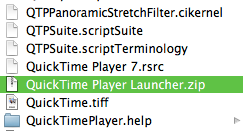
There is a workaround but I have no idea how "safe" it is.
01) Right-Click on QuickTime Player 7 in your Utilities folder and Show Package Contents
02) Goto Contents>Resources and locate "QuickTime Player Launcher".
03) Right-Click on it and select Compress "QuickTime Player Launcher". The resultant .zip file may appear on your desktop because you probably don't have Write permissions to this folder. Just drag it into the folder and Authenticate when it asks you to.
04) Drag (or highlight and Command + Delete) the original QuickTime Player Launcher to the trash. Authenticate if needed.
05) Empty the trash. (Command + Shift + Option + Delete)
Now, Get Info on a .mov (or whichever) file and tell it to Open With QuickTime Player 7 and Change All and then all of those files types should (so far for me) open with QT7.
The only issue you may see are some messed up QT icons in the Finder, either blank or the generic Unix app icon. Possibly because the OS thinks QT now has an unregistered extension.
I'll update this post if any weirdness happens.
01) Get Info on a typical .mov file.
02) Set "Open With" to QuickTime Player 7. (which will be in your utilities folder...)
03) Hit "Change All".
04) Watch the Open With pulldown magically change to QuickTime Player Launcher...which will launch QuickTime Player (X)...sigh.
What is QuickTime Player Launcher? It's an application INSIDE the QuickTime Player 7 app. Right Click on it so Show Package Contents to see it. Then if you want, do that again on QuickTime Player Launcher itself.
What does it do? I have no idea other than seemingly prevent a Snow Leopard user from opening their movie files in something other than QuickTime Player (aka QuickTime X). Seems a little heavy-handed to me coming from Apple.
Here is a thread about it:
Setting .mov files to play in QuickTime Player 7

There is a workaround but I have no idea how "safe" it is.
01) Right-Click on QuickTime Player 7 in your Utilities folder and Show Package Contents
02) Goto Contents>Resources and locate "QuickTime Player Launcher".
03) Right-Click on it and select Compress "QuickTime Player Launcher". The resultant .zip file may appear on your desktop because you probably don't have Write permissions to this folder. Just drag it into the folder and Authenticate when it asks you to.
04) Drag (or highlight and Command + Delete) the original QuickTime Player Launcher to the trash. Authenticate if needed.
05) Empty the trash. (Command + Shift + Option + Delete)
Now, Get Info on a .mov (or whichever) file and tell it to Open With QuickTime Player 7 and Change All and then all of those files types should (so far for me) open with QT7.
The only issue you may see are some messed up QT icons in the Finder, either blank or the generic Unix app icon. Possibly because the OS thinks QT now has an unregistered extension.
I'll update this post if any weirdness happens.
Tuesday, September 1, 2009
More Ways QuickTime X Fails
1. The title bar of a QT X window seems to obscure part of the image. It will fade away revealing the portion it covered when you mouse away from the window. Fading away is a large problem. When sitting with clients looking over versions of an edit, I can already hear their confusion as they can no longer see the Title plus Version Number plus Date of the two side-by-side clips we're watching. Editors and clients need to see which playback window is what version at a glance. Clients won't like this.
2. The floating controller window does not resize when you resize the video's window. This can lead the floating controls covering a large portion of the video.
3. Just the fact that the controls are over the video is an issue. Any time you want to adjust the video in some way, some portion of it will be obscured. I'm sure this will reap havoc with subtitles.
4. When you begin playing a video the controller is there for a few seconds no matter what, again, blocking part of the image.
5. QT X cannot play all open videos simultaneously apparently (I haven't tried it yet, this is from an email), which makes playing multiple versions of a video simultaneously to compare them impossible.
2. The floating controller window does not resize when you resize the video's window. This can lead the floating controls covering a large portion of the video.
3. Just the fact that the controls are over the video is an issue. Any time you want to adjust the video in some way, some portion of it will be obscured. I'm sure this will reap havoc with subtitles.
4. When you begin playing a video the controller is there for a few seconds no matter what, again, blocking part of the image.
5. QT X cannot play all open videos simultaneously apparently (I haven't tried it yet, this is from an email), which makes playing multiple versions of a video simultaneously to compare them impossible.
Monday, August 31, 2009
Snow Leopard Tips (or why QuickTime X sucks)

When you install Snow Leopard (which you shouldn't in the middle of a project, and best to test on a non-mission critical system) there are a few things to be aware of.
1. It won't install QuickTime 7 by default. It will however, keep it installed if you already have a pro-app license which is good because QT 7 can live side-by-side with QT X. You can install it later from Apple if you don't install it during a clean 10.6 install. Oh, and QT 7 has more export options than QT X. Yup. You can also install it from Optional Installs on the Snow Leopard install disc. Btw, after it installs QT7 the player app will be in your Utilities folder of all places. That makes sense...not.
2. Snow Leopard calculates drive sizes using base 10 not base 2 anymore. Seriously. Apple's reason is here. MacFixIt's take on it is here. Lifehacker's take is here.
3. When you eject a volume and it's in use by something, Snow Leopard will tell you what's using it. Ejecting is more reliable overall, or at least that's what Apple claims.
4. Snow Leopard defaults to a Gamma of 2.2. Read the link.
5. GPU Accelerated video encoding :)
6. QT Player no longer adjusts the size of the player's window incrementally when you adjust it while holding down Option. I use this little-known feature extensively to know what the logarithmic sizes of a video are to export a movie as for clients at say half or quarter of the original size. However...this function isn't completely gone in QTX, now you just have to hit Command + I to see the Info Window and then use Command + + (plus) and Command + - (minus) to scale the video player's size incrementally. A small change but old habit's die hard for me.
7. Command + J "Show Movie Properties" is gone. If you need it (and as a Pro user you likely do, for text layers and such, stick with QT7). I don't even know if it's possible to access it with QTX, it may be somehow.
8. Holding down Shift to change a player window's aspect ratio is gone. Stick with QT7.
9. There's a bug in QTX where if a movie is playing and you drag the playhead around the movie may stop playing rather than continue on from the point you release the mouse.
10. QTX does let you make screen recordings, that's pretty cool.
11. QTX, when you tap Command + F for full screen mode still has the annoying occasional bug where an item's label in the dock will remain onscreen despite the mouse being nowhere near it. (FCP's Command + F12 full screen preview is notorious for this bug. Version 6.x at least)
12. QT X doesn't seem to have any preferences available from the Player App.
13. You can't set In and Out points in QT X anymore.
14. Quicktime X seems to have a minimum screen size of 478 x 359 pixels. Videos smaller than that are scaled up fuzzily.
15. QT X seems to have an issue opening SMIL files.
If you're Terminal-friendly here are some commands to alter some of QTX's preferences.
Apple's QuickTime Feedback page is here.
I haven't tested FCS3 with 10.6 yet but I'll get around to it. I may just wait until QuickTime X Pro, if Apple even bothers. Seems like now is a good time to install VLC if you haven't already.
Monday, July 27, 2009
Fixing Corrupted Quicktime Files

Eventually everyone has a Quicktime file go bad that they REALLY need. Most of the time, the data is there, it's just improperly indexed or lacking an index. Here are some options:
01) Dumpster. It's an app that allows you to look at the file in a nice graphical (albeit old-school) way. With it you can view and edit .moov resources.
02) You can try this method using Java. Complex but has worked for some.
03) Atom Viewer. The old saying rings true here, if you don't know what an atom is in the sense of data/files, you probably won't gain anything from this. Plus, it's Windows only.
04) HexEdit. If you spend some time with this and know what you're doing this can save your caboose. (It's like ResEdit...sigh)
05) QT Repair Tool. Don't get your hopes up for this one. It essentially updates a file's clut to work with newer versions of QT.
06) A classic fix if you've lost a file, don't reboot, and look in /private/var/folders/ for a .mov
07) Treasured. They have an app that will analyze your file and if possible, repair it. If it can't it tries to let you know if it can repair it at which point you send it to them or a portion of it and they fix it or send you an app that will. You pay them for their service.
Wednesday, September 24, 2008
QuickTime Player is Muddy & Blurry

Does it look like your QuickTime Player window is smeared with Vasoline™ when you try to look at something you've exported from FCP? Here's the trick:
01) Launch QT Player.
02) Tap COMMAND + , to bring up it's preferences.
03) Under General checkmark the box next to "Use high-quality video setting when available"
and you're done.
Thursday, May 29, 2008
QuickTime's Legacy Prefs

Here's a quick tip:
01) Launch System Prefs
02) Tap QuickTime
03) Select "Advanced"
04) Tick "Show legacy encoders"
Now you'll see some familiar old-school ways to encode your video in QuickTime.
Tuesday, May 13, 2008
TapeDeck

TapeDeck is a neat little piece of software from SuperMegaUltraGroovy which emulates the portable cassette decks from the days of yore. It's essentially a simple GUI to what QuickTime Player Pro does when you hit Control + Option + Command + N which is make a new audio recording.
What TapeDeck does that QT Player doesn't, aside from the retro look and feel is it allows you to label each recording and then search through them afterwards. It also automatically saves the recording when you hit stop. It records to compressed MP4-AAC audio and has an adjustment for low and high quality recording. It's $25 which seems a bit steep for a one-trick pony to me but it could be helpful if you're going to be doing a lot of small recordings in a short amount of time. I hope they make an app called VCRDeck or something next :)
Wednesday, April 23, 2008
Easy Fast Resizing for Transcoding

Lets say you have a video that's 1280x720 but you want to transcode it (using whatever tool you like) to half it's original size. Here's a very fast & simple way to do it: Open it in Quicktime Player, tap Command + I for the info window and Option + Resize the player's window until you see at the bottom of the Get Info window "(Half)".
Option + Resizing the Quicktime Player window resizes it incrementally to nice aspect-ratio-correct sizes. Doing this you'll quickly see that half of your video's original size is 640x360. (I know this is an easy one but imagine if your video's size isn't something so common.)
Monday, April 14, 2008
Artifacts and Fast User Switching

I've been editing on a friend's system for the past few days under a newly created account on their Mac. We've been using Fast User Switching a bit and I've noticed that if I leave FCP running on my login while my friend logs into their account, when switching back to my account sometimes, but not always, the Canvas will display heavy artifacts and skip considerably while playing something from the timeline. The footage was shot to a P2 card as DVCPro HD, 720 24p.
The odd thing is it's not consistent and I can't reproduce it every time at least so far. It may have something to do with this little-acknowledged Quicktime bug 7.4.5 but I'm not sure. Another report of this bug is here.
Tuesday, April 1, 2008
Missing Encoders?
Check this out: If you're missing some encoders in Final Cut Studio here's how to solve it straight from Apple.
Take the following steps to enable additional encoders:
Choose Apple menu > System Preferences.
Choose View > QuickTime.
Click the Advanced button.
Select the checkbox next to Show legacy encoders.
Tuesday, January 29, 2008
Quicktime 7.4 Update Problems
Looks like the latest update to Quicktime (v7.4) breaks some things, lest of all Adobe After Effects for many people. I'm not sure if this is a good thing or not :) I'm not the biggest fan of AE in the world.
People are seeing this error after the update:
Some say it's a DRM issue others, a preferences SNAFU.
People are seeing this error after the update:
"After Effects error: opening movie - you do not have permission to open this file (-54)"
Some say it's a DRM issue others, a preferences SNAFU.
Subscribe to:
Posts (Atom)


 Posts
Posts

