
Here's a handy FREE app to convert Audio pretty painlessly.
MediaHuman Audio Converter
It's pretty straight forward in use. Drag audio files in, set output format and hit go.
Don't forget to head to preferences and set it's output destination to someplace you'd like first. I set it to source folder, the default is in iTunes' music folder.
Showing posts with label convert. Show all posts
Showing posts with label convert. Show all posts
Saturday, June 21, 2014


Thursday, April 26, 2012
QuickTime Player Still Image Export Bug
I'm not sure if I've posted about this before but QuickTime Player 7 (Pro) has a bit of an odd bug in Snow Leopard and later with Preview.
1. Open up a movie and hit Command + E for Export.
2. Under the Export pull-down select "Movie to Picture".
3. Hit the Options button and select any standard image file format, like PNG or TIFF.
4. Notice that the name of the file ends with .pct no matter what.
5. Export the still image.
6. In the Finder, Get Info (Command + I) on the image. Notice it's a "QuickDraw picture"
7. Try opening it with Preview and behold this:

So Get Info on Preview and toggle this tick box:

so that Preview opens up in 32-bit mode.
TaaDaa now the image will open.
But what if you try to open it in Photoshop CS5?

How's that for helpful?
Oddly, if you QuickLook (Spacebar while it's highlighted) the Finder will preview the image.
So what's going on?
QuickTime Player 7 has an export bug relating to exporting still images from video files. It's some combination of the player, the version of the OS (the bug is less buggy in 10.5.x) and later versions of Preview. I suspect that the way the file is written and/or it's format is deprecated now days and likely has been since 10.4 or thereabouts.
The problem (if you're curious) is how PICT files are constructed. Think of them as PostScript for images in a way. When you run the Terminal command "file" on a QuickDraw picture you'll just see "data" as the result. Which is accurate since the data in the image file is (kinda sorta) just coordinates of how to "draw" that image. Wild, eh?
Now, if a client has handed you a pile of these images what do you do?
Three viable options:
1. Open them in Photoshop CS4 - Not guaranteed to work on a given OS however.
2. Use GraphicConverter - Yes, it's still around.
3. Use Preview by switching it to 32bit mode and then doing a batch convert if you have many of these files. Here's a post about that right here.
Now, you may be asking what the best way to export stills from a video file is? I'd suggest MPEG Streamclip which works nicely and lets you export to formats like TIFF, PNG and Jpeg.
1. Open up a movie and hit Command + E for Export.
2. Under the Export pull-down select "Movie to Picture".
3. Hit the Options button and select any standard image file format, like PNG or TIFF.
4. Notice that the name of the file ends with .pct no matter what.
5. Export the still image.
6. In the Finder, Get Info (Command + I) on the image. Notice it's a "QuickDraw picture"
7. Try opening it with Preview and behold this:

So Get Info on Preview and toggle this tick box:
so that Preview opens up in 32-bit mode.
TaaDaa now the image will open.
But what if you try to open it in Photoshop CS5?

How's that for helpful?
Oddly, if you QuickLook (Spacebar while it's highlighted) the Finder will preview the image.
So what's going on?
QuickTime Player 7 has an export bug relating to exporting still images from video files. It's some combination of the player, the version of the OS (the bug is less buggy in 10.5.x) and later versions of Preview. I suspect that the way the file is written and/or it's format is deprecated now days and likely has been since 10.4 or thereabouts.
The problem (if you're curious) is how PICT files are constructed. Think of them as PostScript for images in a way. When you run the Terminal command "file" on a QuickDraw picture you'll just see "data" as the result. Which is accurate since the data in the image file is (kinda sorta) just coordinates of how to "draw" that image. Wild, eh?
Now, if a client has handed you a pile of these images what do you do?
Three viable options:
1. Open them in Photoshop CS4 - Not guaranteed to work on a given OS however.
2. Use GraphicConverter - Yes, it's still around.
3. Use Preview by switching it to 32bit mode and then doing a batch convert if you have many of these files. Here's a post about that right here.
Now, you may be asking what the best way to export stills from a video file is? I'd suggest MPEG Streamclip which works nicely and lets you export to formats like TIFF, PNG and Jpeg.
Saturday, April 14, 2012
Amazing Free Online Toolset for Video and Editors
Michael Cinquin has a pretty amazing page with some handy FREE online tools that you may want to bookmark.
I'm on the road (again) and needed to convert a .srt subtitle file to .stl and his online converter worked beautifully.
Check it out and see if anything is helpful to you and drop him a thank you note if you have the time.
There is help for Final Cut Pro, RedCode, Conforming sounds, Subtitles...and lots more.
I'm on the road (again) and needed to convert a .srt subtitle file to .stl and his online converter worked beautifully.
Check it out and see if anything is helpful to you and drop him a thank you note if you have the time.
There is help for Final Cut Pro, RedCode, Conforming sounds, Subtitles...and lots more.
Tuesday, January 31, 2012
Convert Final Cut Pro 7 projects to Final Cut Pro X
There's a $10 app called 7toX [app store link] that claims to convert Final Cut Pro 7's project files to Final Cut Pro X.
"7toX for Final Cut Pro brings your Final Cut Pro 7 projects forward to Final Cut Pro X so you can use Apple’s powerful new professional editing tools to update or finish your older projects. The lightweight application is simple to use, with drag-and-drop support and progress information. 7toX translates important metadata from your Final Cut Pro 7 Project — including bins, clips and sequences — to a new Event in Final Cut Pro X with the highest fidelity of any translation application for Final Cut Pro. In addition, the application provides clear, detailed reporting after every transfer. "
I haven't had much time to play with it but I'll be looking into it more this week and beyond to see how it fares. I wonder why Apple didn't release an app like this or build something like this into FCPX, even as a "beta" feature.
Had Apple integrated this (as a big red flag warning-ized "beta" feature) and waited until Photoshop Layer import, broadcast monitoring and Multicam editing were ready I believe the adoption rate for FCPX would have been MUCH higher and the bad press would have been MUCH lower. Heck, they may have even had Mac Towers still on display in all of their stores. (meaning, today some Apple stores don't have Mac Towers on display anymore...I know!)
"7toX for Final Cut Pro brings your Final Cut Pro 7 projects forward to Final Cut Pro X so you can use Apple’s powerful new professional editing tools to update or finish your older projects. The lightweight application is simple to use, with drag-and-drop support and progress information. 7toX translates important metadata from your Final Cut Pro 7 Project — including bins, clips and sequences — to a new Event in Final Cut Pro X with the highest fidelity of any translation application for Final Cut Pro. In addition, the application provides clear, detailed reporting after every transfer. "
I haven't had much time to play with it but I'll be looking into it more this week and beyond to see how it fares. I wonder why Apple didn't release an app like this or build something like this into FCPX, even as a "beta" feature.
Had Apple integrated this (as a big red flag warning-ized "beta" feature) and waited until Photoshop Layer import, broadcast monitoring and Multicam editing were ready I believe the adoption rate for FCPX would have been MUCH higher and the bad press would have been MUCH lower. Heck, they may have even had Mac Towers still on display in all of their stores. (meaning, today some Apple stores don't have Mac Towers on display anymore...I know!)
Thursday, January 19, 2012
Importing PDF files into Final Cut Pro
Today I was handed a 100+ page PDF to use in a FCP project. The problem is that FCP doesn't really like .PDF's all that much and if you drag a multi-page PDF into FCP you'll get a short clip that will essentially have each page as a frame. Not terribly useful unless that's what you'd like to see when you hit play.
Here are a few ways to get decent results without too much trouble using stuff you likely already have.
01. Open the PDF in Preview.
02. Hit Shift + Command + D to see the sidebar if it's not already open.
03. Hit Option + Command + 2 to see a long list of Thumbnails. Scroll down to the page you want to use in FCP.
Alternatively, if you know the page number of the page you want hit Option + Command + G to bring down the Go To Page text entry box, enter the page number and hit OK. The reason this may not be the best way is that some PDFs numbering schemes are off by a number or two, at least in the few that I've been given to use in FCP: ie.. Page 43 in the thumbnails is actually Page 42 as shown on the PDF.
04. Hit Command + Shift + S for Save As...
05. When the Save As sheet drops down select JPEG for the Format Pull-Down (you can also choose TIFF if you'd like to).
06. Set the Quality Slider to "Best"
07. For Resolution it will likely default to 150 pixels/inch. This should be okay for most situations, but you can bump it up higher if you'd like. I didn't notice too much of a difference between 150 and 300.
08. Tell it where you want to save the file and hit Save.
09. Import the file you just made into FCP.
10. Bring the .jpg or .tiff into the Timeline and Scale it if needed then render.
I've have acceptable results for corporate junk using this method. It's not the best quality but good enough for company work.
01. Open the PDF in Preview.
Here are a few ways to get decent results without too much trouble using stuff you likely already have.
METHOD #01
(Save As... in Preview, better for high-quality requirements like text)01. Open the PDF in Preview.
02. Hit Shift + Command + D to see the sidebar if it's not already open.
03. Hit Option + Command + 2 to see a long list of Thumbnails. Scroll down to the page you want to use in FCP.
Alternatively, if you know the page number of the page you want hit Option + Command + G to bring down the Go To Page text entry box, enter the page number and hit OK. The reason this may not be the best way is that some PDFs numbering schemes are off by a number or two, at least in the few that I've been given to use in FCP: ie.. Page 43 in the thumbnails is actually Page 42 as shown on the PDF.
04. Hit Command + Shift + S for Save As...
05. When the Save As sheet drops down select JPEG for the Format Pull-Down (you can also choose TIFF if you'd like to).
06. Set the Quality Slider to "Best"
07. For Resolution it will likely default to 150 pixels/inch. This should be okay for most situations, but you can bump it up higher if you'd like. I didn't notice too much of a difference between 150 and 300.
08. Tell it where you want to save the file and hit Save.
09. Import the file you just made into FCP.
10. Bring the .jpg or .tiff into the Timeline and Scale it if needed then render.
I've have acceptable results for corporate junk using this method. It's not the best quality but good enough for company work.
METHOD #02
(Dragging out a separate .PDF page)01. Open the PDF in Preview.
02. Hit Shift + Command + D to see the sidebar if it's not already open.
03. Hit Option + Command + 2 to see a long list of Thumbnails. Scroll down to the page you want to use in FCP.
04. Find the page you want and then drag the thumbnail in the sidebar to the Desktop or folder where you want it to go.
This will create a new PDF of just that single page.
05. Import the file you just made into FCP.
06. Bring the .pdf into the Timeline and Scale it if needed then render.
The results won't be perfect but good enough for some projects.
METHOD #03
(Making each page a separate image file. Read the Warning about this!)If you need each page in the PDF as a separate image file here's one quick and dirty way:
01. Open the PDF in Preview.
02. Hit Command + P for Print...
03. After the Print sheet drops down hit the PDF button at the bottom left.
04. Select either "Save PDF to Folder as JPEG" or Save PDF to Folder as TIFF"
WARNING!
Be aware though that when I do this there is no sheet asking where to save the files. For me, and maybe this is some kind of bizarre bug or me doing something wrong, it saved the individual pages as images files in my "-Tmp-" folder, which is inside an invisible folder (not meaning Lion's crazy invisible user folder madness).
Monday, November 14, 2011
Adapter - Another FREE transcoder
I've been busy lately, and part of the reason I've been so busy is clients like to revive long dead projects so they can play them on the latest and greatest outdated video servers at TV stations.
When A client asked for a project that has been planted firmly in the video graveyard several years ago to be converted to "an mpeg two" I eventually got around to it.
Looking around I ran across a transcoder that I hadn't heard of before called Adapter. It's FREE and isn't all that bad for transcoding stuff. Here's the list they provide when they say "Convert anything to anything"
"3g2, 3gp, 4xm, RoQ, ac3, alaw, asf, asf_stream, au, audio_dice, avi, crc, daud, dc1394, s, dv, dv1394, dvd, ea, ffm, film_cpk, flic, flv, gif, h261, h263, h264, idcin, image, image2, image2pipe, imagepipe, ipmovie, m4v, matroska, mjpeg, mmf, mov, mov, mp4, m4a, 3gp, 3g2, mp2, mp3, mp4, mpeg, mpeg1video, mpeg2video, mpegts, mpegvideo, mpjpeg, mulaw, nsv, null, nut, ogg, psp, psxstr, rawvideo, redir, rm, rtp, rtsp, s16be, s16le, s8, sdp, shn, sol, svcd, swf, u16be, u16le, u8, vcd, video4linux, vmd, vob, wav, wc3movie, wsaud, wsvqa, yuv4mpegpipe"
As always, your milage may vary, but it's handy to know about and since it's free it's worth a shot.
When A client asked for a project that has been planted firmly in the video graveyard several years ago to be converted to "an mpeg two" I eventually got around to it.
Looking around I ran across a transcoder that I hadn't heard of before called Adapter. It's FREE and isn't all that bad for transcoding stuff. Here's the list they provide when they say "Convert anything to anything"
"3g2, 3gp, 4xm, RoQ, ac3, alaw, asf, asf_stream, au, audio_dice, avi, crc, daud, dc1394, s, dv, dv1394, dvd, ea, ffm, film_cpk, flic, flv, gif, h261, h263, h264, idcin, image, image2, image2pipe, imagepipe, ipmovie, m4v, matroska, mjpeg, mmf, mov, mov, mp4, m4a, 3gp, 3g2, mp2, mp3, mp4, mpeg, mpeg1video, mpeg2video, mpegts, mpegvideo, mpjpeg, mulaw, nsv, null, nut, ogg, psp, psxstr, rawvideo, redir, rm, rtp, rtsp, s16be, s16le, s8, sdp, shn, sol, svcd, swf, u16be, u16le, u8, vcd, video4linux, vmd, vob, wav, wc3movie, wsaud, wsvqa, yuv4mpegpipe"
As always, your milage may vary, but it's handy to know about and since it's free it's worth a shot.
Tuesday, April 6, 2010
Permute
Permute (NOT a free app) could be part of an alternative to the much missed VisualHub. It has a good selection of presets and you can modify them as well. It's clearly not for professionals who need more fine-grained controls or non-consumer formats but for quick conversion of things to xBox or iPhone and the like it could be handy.
I haven't done extensive testing with it but if you're looking for something to fill in the hole left by VisualHub this could be a good start.
I haven't done extensive testing with it but if you're looking for something to fill in the hole left by VisualHub this could be a good start.
Thursday, April 2, 2009
PAL to NTSC DVD Conversion
Here's another reason to lament VisualHub's passing.
A client needed a PAL DVD of dailies converted to NTSC that day. Looking at the structure of the DVD I saw that there were luckily no menus, just four VOB files.
I launched VisualHub, dragged the VOB files into it, told it NTSC, Author as DVD, Burn When Done and popped in a blank DVD. About an hour later I had an NTSC DVD for them.
So if you need a fast simple way to convert a PAL DVD to NTSC (that's not copy protected) and don't want to worry about 720x576@25fps vs. 720x480@29.97fps, VisualHub is a pretty straight forward route.
You can also name the DVD in the Advanced window and tell it to create chapter stops every 5mins or so if you'd like.
Here's looking forward to Transcoder Redux in the future world of tomorrow as a VisualHub replacement.
A client needed a PAL DVD of dailies converted to NTSC that day. Looking at the structure of the DVD I saw that there were luckily no menus, just four VOB files.
I launched VisualHub, dragged the VOB files into it, told it NTSC, Author as DVD, Burn When Done and popped in a blank DVD. About an hour later I had an NTSC DVD for them.
So if you need a fast simple way to convert a PAL DVD to NTSC (that's not copy protected) and don't want to worry about 720x576@25fps vs. 720x480@29.97fps, VisualHub is a pretty straight forward route.
You can also name the DVD in the Advanced window and tell it to create chapter stops every 5mins or so if you'd like.
Here's looking forward to Transcoder Redux in the future world of tomorrow as a VisualHub replacement.
Monday, May 12, 2008
Converting Audio with iTunes Tips

Often when I have to convert audio from one format to another I'll toss it in QT Pro Player or AudialHub. I've been doing this because iTunes loves to drop the converted files into the iTunes library, add a second listing to my music library and other minor annoyances. Here's a great tip to avoid most of that nonsense and use iTunes to convert audio.
Basically hold down Option before you select the Advanced item from iTunes menubar and instead of "Convert Selection to AAC (or whatever your prefs are set to)..." you'll see "Convert to AAC..." again, or whatever your prefs are set to, and iTunes will ask you which file on what HD you want to convert. Now, hold down Option again before you tap Open and it'll ask you where you want to save the converted file! That's handy.
Wednesday, April 16, 2008
AudialHub
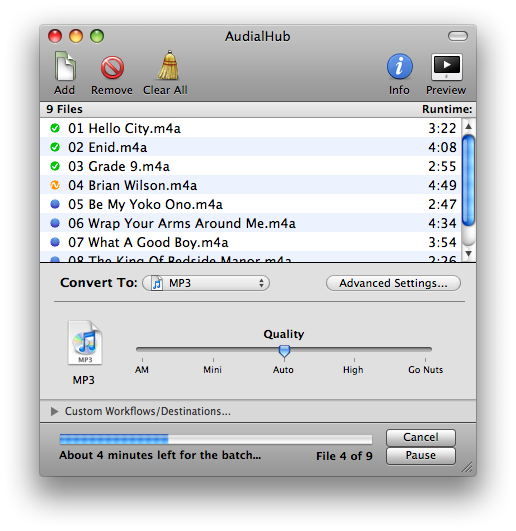
From the same company who make VisualHub comes their new audio conversion tool, AudialHub.
Conversion from dozens of audio types to popular formats like AAC, MP3, WMA, AIFF, WAV, Apple Lossless, 3G (cell phones), Ogg Vorbis, FLAC, and even Audio and MP3 CDs!
Audio tracks inside video files can also be converted!
Common tags (Artist, Album, etc) are automatically passed when applicable.
Up to 16 hours of audio can be converted to a single MP3 CD.
Easy-to-use Trim capabilities to narrow down short segments of audio.
Quick Preview capability to check out compression quality and Trim settings before a full conversion.
Dynamic file queue, allowing mid-conversion changes or additions, Pause/Resume, and an "always ready" Assembly Line Mode!
Run multiple simultaneous conversions in separate queues with separate settings.
Growl notifications, Dock progress indicator, and AppleScripting automation support!
Normalization, audio track selection, multiple decoder options, and direct access to add custom low-level command-line settings!
Detailed Users Guide and Help Center.
Even the price is funny: $18.81 alone or at a discount (if you bought VisualHub) of $14.41.
(btw, VisualHub was updated to v1.32 today)
Tuesday, March 18, 2008
Toast 9.0.1 & Converting Audio

For some insane reason I've been getting audio files from a client in .FLAC format. Yeah, I know. So I decided to try another method to convert them en masse today. Earlier today I installed Toast 9.0.1 and decided to try it to convert the flac things to something I could use.
Playing around with different setttings in Toast 9.0.1 I noticed one got'cha: The Sound Settings window will revert to it's defaults every time you close and open it by hitting the BIG RED BUTTON. You'll see it revert back to "Average Bit Rate" and a Quality of "Normal".
Other than that, Toast 9.0.1 is fine for converting stuff it seems. A little slow but usable.
Friday, March 7, 2008
Speaking of audio files...

If a client happens to hand you a bunch of .ape or .wv files for the projects's audio, one tool that can help convert them to something you can actually use is X Lossless Decoder. It can convert the following:
(Ogg) FLAC (.flac/.ogg)
Monkey's Audio (.ape)
Wavpack (.wv)
TTA (.tta)
Apple Lossless (.m4a) [10.4 and later]
AIFF, WAV, etc
And, it's free!
Subscribe to:
Posts (Atom)


 Posts
Posts

