Tuesday, November 3, 2009

FCP's Scroll Box Bug

Here's a quickie:


When you scroll while audio is playing in the Viewer with Apple's (now EOL'd) Mighty Mouse the display in the Viewer will be clean. However, if you scroll with the Viewer's Scroll Box slider you'll usually see artifacts like those above. I'm not sure what causes the redraw issue. Maybe some combo of hardware.

8mm Distress Kit Review

I had the opportunity to review Mediapreview's 8mm Distress Kit which is a $35 series of 28 clips to make your footage look like you shot it with your favorite Yashica 8-E III or Argus 8 back when 8mm meant split 16mm rather than 8mm video tapes.

What you get are two .mov files at 720x480 at 29.97fps. Every editor (and audience practically) is familiar with Artbeat's film looks so it's good to get some fresh material to work with and using them couldn't be simpler. Mediapreview has posted instructions here to help you out.

The first 60sec file has 14 clips strung together with numbers between each bit of footage so you can find one relatively quickly. My assistant thought that it would be easier to have them all as separate clips rather than two long files you have to shuttle through but I guess it's six of one really. I think it's simpler to scrub though two long clips rather than load up each one separately to find one that suits your needs. The second file has the other 14 clips and runs about 52 seconds.

The clips themselves run from leaders, mis-aligned, off-register, green keyed sprockets, dirty, grain, etc... but sadly, no burn throughs so this kit won't help you with your remake of Two-lane Blacktop. Another dificiency is the inclusion of just one dirty gate matte as item 13 on clip number 1.

However, the clips that are included are excellent at nailing that classic look of your old home movies or 1970's PSA's on PBS; they're really spot on. If you're out to re-create the healthy joys of Mulligan Stew in your backyard this kit is for you.

Basically, all you need to do is overlay the kit's clips atop your footage and choose an appropriate compositing method. I ended up using Screen a lot while playing around with the kit with some interesting and authentic results although stretching the clips to fit 16x9 footage to give it that 8mm look was pretty amusing.

For only $35, if you need that retro look and don't want to reuse the same clips that have been around for years, you really can't go wrong with Mediapreview's kit.

You can get some sample clips here and watch a demo here.

I'd like to see some more choices for mattes of dirty gates and some longer clips but the but the mood the material that is there already creates is pure authentic Radiant Screen ready fun. And yes, if you got all the references in this post you're old. Like me.

Friday, October 23, 2009

Digital Cinema Desktop Preview tearing on Snow Leopard

Apple has released an update that addresses this.

"Fixes cases in which tearing can occur with Digital Cinema Desktop Preview on Snow Leopard."

You can get the update here or with Software Update.

Wednesday, October 21, 2009

ReelDirector for the iPhone 3GS from Nexvio

ReelDirector is a video editor made by Nexvio for the iPhone 3GS and it's pretty impressive. Hopefully, the next Final Cut will similarly have a more refined and approachable -yet not dumbed down- interface.


ReelDirector makes it simple for everyone to create movie right on iPhone 3GS. With a drag-and-drop timeline, multiple text watermark styles and 27 pro grade transitions, you'll turn your scattered video clips into polished movies in just minutes.


It's $7.99. Yes, 8 dollars.

Note to self: Get an iPhone...

Monday, October 19, 2009

New Final Cut Studio 3 Rumors

From Hardmac:

...the suite is being entirely re-written and its interface will be deeply modified. First, all applications forming the suite will not be indepedent as currently, be integrated inside a single super-application. The main interface will be using the concept of rooms...

Sunday, October 18, 2009

Removing Hardcoded Subtitles


This is an interesting problem. Someone emailed me asking about recutting an OLD training tape (VHS, 1980's, pastels, big hair, fun) rather than just reshoot the thing to update it and looking around I found VirtualDub MSU Subtitle Remover because the tape they have has hardcoded subtitles.

It seems that it's algorithm essentially clone tools whats near the hardcoded subtitles and then tries to smooth it out a bit. They have example screenshots at their site.

I haven't tried it because I'm not taking the project but it's an interesting bit of software. I wonder if anyone has ever tried it on this.

Yes it's a crime that it's not available for Mac or even Linux.

Thursday, October 15, 2009

When Renaming Clips Goes Bad

Sometimes, and I have no idea really what the cause is, but FCP can essentially get a file's info "stuck", almost like there's a symlink between it and a particular clip.

For example, take a look at this:
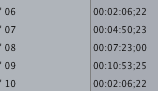


You can see that clip 6 has the exact same duration as clip 10. Only it shouldn't. And FCP will still treat it as if it's that length by playing black past that point. What happened here is that clip 10 used to be named clip 06.

An editor came along and simply renamed clip 10 to clip 06 and for some reason FCP still thinks it's the duration of it's former self. I don't know if this editor used FCP's renaming function or did it in the Finder, however.

Either way, you can highlight the clip in the bin and then goto Tools>Analyze Movie>Clip and see that FCP knows the actual duration of the clip, but in the bin, in multiclips and in the timeline it will seemingly forever play it back with the wrong duration.

The solution is to treat the clip as if it were symlinked. So you have two options:

01) Delete the errant clip from the Bin. Then either...

02) Copy the clip in the Finder to another place or folder or drive, then copy it back to where it should be, overwriting (or after tossing out) the original file. Then drag it back into your Bin. Or...

03) Simply, (after deleting it from the Bin) move it to another location, drag it back into the Bin, confirm the duration is okay, then delete it from the Bin, move it back to where it should be, then drag it back into the Bin.
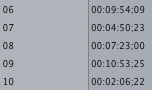


For me for one particularly stubborn clip step three was completely necessary. FCP kept thinking it was the wrong clip until I told FCP it was now here, then there in the Finder.

While I'm not sure what causes this behavior, it seems likely it's the result of a multiclip project going from Leopard to Snow Leopard with a renaming session in between.

Be Careful When Reconnecting/Renaming Multiclips

When you have a multiclip already in a sequence, be aware that if one of the clips (or more) was renamed since it was edited into the Timeline, FCP can get confused and attribute TWO file names to one clip.

This will result in all manners of strangeness. For one, even though all the footage in your bin will be properly connected, a multiclip in the sequence in your timeline may still report a red bar over it, and if you hover your mouse over the red bar you'll see FCP complaining that one of the clips is offline...but it's not...it likely it just has two file names attributed to it. One of them being the old file name that's no longer available to FCP.

The solution is to 2nd click on the clip in the timeline, select Reconnect Media and then after connecting the properly named files, ignore the improperly named one(s). You should see the red render bar turn green nearly instantly.

This can happen if the files were initially named incorrectly and an editor renames them from within FCP or in the Finder late into a project's life.

Wednesday, October 14, 2009

iaian7's Ratio Widget

iaian7 has a pretty nifty FREE Dashboard widget to help you quickly calculate screen resolutions. You can check it out here. It even has support for iFrames already.

Beware when buying an EXT HD to replace an INT one

Xlr8yourmac.com has a brief story on what's inside an external HD case if you plan on buying one and swapping it out with the SATA drive in your laptop for more capacity, higher speeds or what have you.

It turns out that some HD manufacturers are putting their own connectors on HD's that essentially render them useless for laptop swaps. Western Digital being one of them with their 1TB Passport Essential SE USB. The drive doesn't have a SATA connector but rather a USB Mini-B (or Micro-B, I always get them confused).