
Xlr8yourmac.com has a brief story on what's inside an external HD case if you plan on buying one and swapping it out with the SATA drive in your laptop for more capacity, higher speeds or what have you.
It turns out that some HD manufacturers are putting their own connectors on HD's that essentially render them useless for laptop swaps. Western Digital being one of them with their 1TB Passport Essential SE USB. The drive doesn't have a SATA connector but rather a USB Mini-B (or Micro-B, I always get them confused).
Wednesday, October 14, 2009


Tip to use older Firewire devices under Snow Leopard
Macosxhints.com has an interesting tip on replacing a newer ktext file with an older one to get some older firewire devices to mount/work under Snow Leopard.
I haven't had any firewire devices that fail to work under Snow Leopard but this is good to know if you run into the problem.
I haven't had any firewire devices that fail to work under Snow Leopard but this is good to know if you run into the problem.
Tuesday, October 13, 2009
Motion 4: May be unable to open projects
Here's a handy tip if Motion 4 refuses to open a project for you after installing Snow Leopard and FCS 09:
The Knowledge Base article is here.
What's Touch do? From it's Man page:
To address this issue, be sure Motion is not running. Then, open Terminal (located in ~/Applications/Utilities), and run the following command:
sudo touch /Applications/Motion.app
The Knowledge Base article is here.
What's Touch do? From it's Man page:
The touch utility sets the modification and access times of files to the current time of day. If the file doesn't exist, it is created with default permissions.
Apple's iFrame Announced

Apple has announced something called iFrame in a Knowledge Base article.
What's iFrame?
The iFrame Video format is designed by Apple to speed up importing and editing by keeping the content in its native recorded format while editing. Based on industry standard technologies such as H.264 and AAC audio, iFrame produces small file sizes and simplifies the process of working with Video recorded with your camera.
So it's essentially:
960x540
30fps
H.264
AAC
iMovie 8.0.5 suports it. And only two camcorders. No word on when FCP will support it.
9to5mac.com has a representational image comparing frame sizes here. Their brief article is here.
Appleinsider has a more in-depth article here.
Sunday, October 11, 2009
Snow Leopard and Desktop Preview - Main
A few people (including me) have noticed quite dramatic artifacts when playing a project using Desktop Preview - Main under snow leopard. The artifacts look like quickly flickering horizontal lines which do not hold their positions when you stop and then start playback again.
I'm not sure what the exact combination of things causes the artifacts but it's something that appears for some people when under 10.6.1 but doesn't when booted from 10.5.8. Using either FCP6 or 7 doesn't seem to matter, it seems to be related to Snow Leopard.
I'm not sure what the exact combination of things causes the artifacts but it's something that appears for some people when under 10.6.1 but doesn't when booted from 10.5.8. Using either FCP6 or 7 doesn't seem to matter, it seems to be related to Snow Leopard.
Tuesday, October 6, 2009
Should People Wait to Buy FCS3?
Hardmac is reporting a rumor that one of their sources claims Final Cut Studio 3 is a "temporary/transition" version mainly released for Snow Leopard compatibility and that at NAB in 2010 (April 10th through the 15th) a more complete version will be announced.
Friday, October 2, 2009
What Model Mac Are You On?
If you're troubleshooting a Mac and aren't sure what exact model it is...so you don't know what firmware this or that needs...there's an easy way to find out not only the model designation but the type of CPU as well.
Fire up the Terminal (From the Finder hit Command + Shift + U, then T, then Command + O) and type in:
sysctl -a hw
Then hit Return.
You'll see fun info like:
hw.activecpu: 2
hw.physicalcpu: 2
hw.physicalcpu_max: 2
hw.logicalcpu: 2
hw.logicalcpu_max: 2
hw.cputype: 7
hw.cpusubtype: 4
hw.cpu64bit_capable: 1
hw.availcpu = 2
hw.machine = i386
but most importantly:
hw.model = Macmini2,1
If you want to see the exact CPU type, type in:
sysctl -a
and hit Return then look for something like:
machdep.cpu.vendor: GenuineIntel
machdep.cpu.brand_string: Intel(R) Core(TM)2 CPU T7200 @ 2.00GHz
Fire up the Terminal (From the Finder hit Command + Shift + U, then T, then Command + O) and type in:
sysctl -a hw
Then hit Return.
You'll see fun info like:
hw.activecpu: 2
hw.physicalcpu: 2
hw.physicalcpu_max: 2
hw.logicalcpu: 2
hw.logicalcpu_max: 2
hw.cputype: 7
hw.cpusubtype: 4
hw.cpu64bit_capable: 1
hw.availcpu = 2
hw.machine = i386
but most importantly:
hw.model = Macmini2,1
If you want to see the exact CPU type, type in:
sysctl -a
and hit Return then look for something like:
machdep.cpu.vendor: GenuineIntel
machdep.cpu.brand_string: Intel(R) Core(TM)2 CPU T7200 @ 2.00GHz
QuickTimeMPEG2 Component vs Snow Leopard

If you install Snow Leopard and have the QuickTime Mpeg2 component installed, Snow Leopard will likely delete it. So, before you install Snow Leopard back this file up:
/System/Library/QuickTime/QuickTimeMPEG2.component
If you have already installed Snow Leopard and are now missing this file there are three things you can do to get it back:
01) Go to your Time Machine backup and restore it.
02) Head over to Apple and see if you can download it again if you bought it there under your account in Downloadables.
03) If you initially got it via Final Cut Studio then pop your FCS Install disc back in and then in the Finder hit Command + Shift + G (for Go to Folder...) and head to /Volumes/Final Cut Studio/Installer/Packages. Look for QuickTimeMPEG2.pkg and install it.
And this is curious, if you Right Click on the QuickTimeMPEG2 Component in Snow Leopard and choose Open With... you'll see the odd option KoreanIM as the default. If you try to open it with KoreanIM you'll be greeted with "Hangul cannot open files of this type."
Fun stuff.
Thursday, October 1, 2009
Final Cut Pro 7 Professional Formats and Workflows

If you haven't yet grabbed a copy of Apple's 132 page Final Cut Pro 7 Professional Formats and Workflows PDF, you should. There is a mountain of useful information in it.
Quicktime Player Launcher preventing always "Open With" QuickTime Player 7
Try this in Snow Leopard:
01) Get Info on a typical .mov file.
02) Set "Open With" to QuickTime Player 7. (which will be in your utilities folder...)
03) Hit "Change All".
04) Watch the Open With pulldown magically change to QuickTime Player Launcher...which will launch QuickTime Player (X)...sigh.
What is QuickTime Player Launcher? It's an application INSIDE the QuickTime Player 7 app. Right Click on it so Show Package Contents to see it. Then if you want, do that again on QuickTime Player Launcher itself.
What does it do? I have no idea other than seemingly prevent a Snow Leopard user from opening their movie files in something other than QuickTime Player (aka QuickTime X). Seems a little heavy-handed to me coming from Apple.
Here is a thread about it:
Setting .mov files to play in QuickTime Player 7
There is a workaround but I have no idea how "safe" it is.
01) Right-Click on QuickTime Player 7 in your Utilities folder and Show Package Contents
02) Goto Contents>Resources and locate "QuickTime Player Launcher".
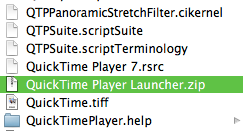
03) Right-Click on it and select Compress "QuickTime Player Launcher". The resultant .zip file may appear on your desktop because you probably don't have Write permissions to this folder. Just drag it into the folder and Authenticate when it asks you to.
04) Drag (or highlight and Command + Delete) the original QuickTime Player Launcher to the trash. Authenticate if needed.
05) Empty the trash. (Command + Shift + Option + Delete)
Now, Get Info on a .mov (or whichever) file and tell it to Open With QuickTime Player 7 and Change All and then all of those files types should (so far for me) open with QT7.
The only issue you may see are some messed up QT icons in the Finder, either blank or the generic Unix app icon. Possibly because the OS thinks QT now has an unregistered extension.
I'll update this post if any weirdness happens.
01) Get Info on a typical .mov file.
02) Set "Open With" to QuickTime Player 7. (which will be in your utilities folder...)
03) Hit "Change All".
04) Watch the Open With pulldown magically change to QuickTime Player Launcher...which will launch QuickTime Player (X)...sigh.
What is QuickTime Player Launcher? It's an application INSIDE the QuickTime Player 7 app. Right Click on it so Show Package Contents to see it. Then if you want, do that again on QuickTime Player Launcher itself.
What does it do? I have no idea other than seemingly prevent a Snow Leopard user from opening their movie files in something other than QuickTime Player (aka QuickTime X). Seems a little heavy-handed to me coming from Apple.
Here is a thread about it:
Setting .mov files to play in QuickTime Player 7

There is a workaround but I have no idea how "safe" it is.
01) Right-Click on QuickTime Player 7 in your Utilities folder and Show Package Contents
02) Goto Contents>Resources and locate "QuickTime Player Launcher".
03) Right-Click on it and select Compress "QuickTime Player Launcher". The resultant .zip file may appear on your desktop because you probably don't have Write permissions to this folder. Just drag it into the folder and Authenticate when it asks you to.
04) Drag (or highlight and Command + Delete) the original QuickTime Player Launcher to the trash. Authenticate if needed.
05) Empty the trash. (Command + Shift + Option + Delete)
Now, Get Info on a .mov (or whichever) file and tell it to Open With QuickTime Player 7 and Change All and then all of those files types should (so far for me) open with QT7.
The only issue you may see are some messed up QT icons in the Finder, either blank or the generic Unix app icon. Possibly because the OS thinks QT now has an unregistered extension.
I'll update this post if any weirdness happens.
Subscribe to:
Posts (Atom)


 Posts
Posts


