Friday, October 3, 2008

Set Your Favorite Video Filter's Key Command


This one is quick and simple. If you use a filter regularly or just very often for a project you can set it up as a favorite filter with a specific key command. But, what's a little cooler is you can set your favorite filter to be the same key command all the time. The trick is after you drag a filter in your Effects window to your Favorites bin, rename it with a space before it's name so it's always listed at the top (in alphabetical order).

Now, that filter will always be Control + Shift + 2 even if you add more filters to your Favorites bin.

Zoom In For Color Correction


Really this tip applies to any close up work but it's especially handy for color correcting.

Launch System Preferences and go to Universal Access. Under the Seeing tab (are they still called tabs?) hit the Options... button under Zoom.

At the bottom of this sheet you'll see "When zoomed in, the screen image shows:" and three options. Adjust these to your liking but under it make sure "Use scroll wheel with modifier keys to zoom" is checked. The text box there is for you to choose what key(s) you want to hold down to zoom in and out with your mouse.

Now, when you're working in FCP and need to hit that specific pixel for color correcting or just to get a better view of something hold down your modifier key and scroll up with your mouse's scrolling wheel or ball and you'll zoom into your screen. Scroll or wheel the other way to zoom out.

Wednesday, September 24, 2008

My 16:9 DV Exports Are Squeezed!


When you bring 16x9 DV footage into FCP it loads it as 720x480 pretty much no matter what. So when you export your timeline with a quick Export To Quicktime Movie you end up with your 16x9 footage squeezed into a 4x3 space. Why? Blame all this non-standardness mess. So, how do you fix it?

First off don't Export To Quicktime Movie, instead use Export Using Quicktime Conversion.

Btw, I've assigned Command + E to "Export To Quicktime Movie" and Shift + Command + E to "Export Using Quicktime Conversion" because I can.

In Final Cut:

01) Make sure the thing you want to export is active (ie..timeline, sequence, viewer...)
02) In the menubar goto File>Export>Export Using Quicktime Conversion.
03) In the Save window that pops up hit Options.
04) In the next window, called Movie Settings, hit Settings under Video.
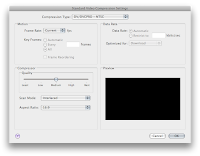
05) In the next window, called Standard Video Compression Settings (I think), under Compression Type select DV/DVCPRO - NTSC.
06) Then, in that same window at the bottom left set Aspect Ratio to 16:9. The rest of the settings are up to you but I like to choose Progressive and Best quality under the Compressor setting.
07) Hit Ok, hit Ok then hit save (after you make sure it's going to save it where you want it.

Done. Your footage will play back at 853x480 in a nice widescreen QT window. Yays!

QuickTime Player is Muddy & Blurry


Does it look like your QuickTime Player window is smeared with Vasoline™ when you try to look at something you've exported from FCP? Here's the trick:

01) Launch QT Player.
02) Tap COMMAND + , to bring up it's preferences.
03) Under General checkmark the box next to "Use high-quality video setting when available"

and you're done.

Thursday, September 18, 2008

Random Green Frames

I was working on a small 30sec commercial that someone handed off to me which was mainly graphics and VO when I noticed that every time I rendered it a seemingly random and different each time frame was just full screen green.

Usually QuickTime does this when it can "read" a file or codec or something along those lines. Checking the timeline I saw that the background layer, the only thing to go green in a bad way, was a .mpg, specifically MPEG2 Muxed. Quicktime seemed to have an issue with it either rendering in the timeline or exporting to a QT Movie.

So, I tossed the offending .mpg into QT Player, exported it as a DV stream (this wasn't HD, obviously) imported it into FCP and replaced the old .mpg with it in the timeline and all was well after re-rendering and re-exporting.

The lesson here is despite what Apple and the FCP manual's tell you highly compressed codecs aren't the best thing to work with if there is a lesser compressed choice.

Yes yes, I'm aware of generational lossy-ness...

Thursday, August 21, 2008

Scrubbing in the Finder's Preview Column

If you're like a lot of people out there, you dislike the new Preview window in Column View. Why? Two main reasons: one you can't control the volume readily and two, there's no way to scrub through media there.

Scrubbing IS possible if you have an Apple Mighty Mouse. Just hover over the disclosed media in the Preview window and Scroll UP to go Forward and Scroll DOWN to scrub backwards. I have no idea how to do this using just the keyboard unfortunately.

One thing that bugs me about the new Preview window in Leopard is that you must click on the play button to start a preview's playback but you can click anywhere on the preview to stop it. That's inconsistent Finder behavior. And while I'm at it, why doesn't Quickview have a volume slider?

Monday, August 4, 2008

Letterbox, Pillarbox and Windowbox

Tired of having people ask you what the difference is between letterboxing and full-screen? Sick of people complaining about the black bars cutting off the top and bottom of their new giant tv? Me too. Here's yet another page, this time from Apple, trying to explain it all.

Choosing A Hard Disk

Apple has some revised advice about choosing a hard disc for FCP here.

Faster Firewire Finally

Looks like faster Firewire is on it's way come October. Apparently it's called 1394-2008 and it supports speeds of 1.6 Gigabits/sec and 3.2 Gigabits/sec using the same kind of connector that Firewire 80 now uses and it's all fully backwards compatible.

Monday, July 28, 2008

FCP Troubleshooting Basics

Apple [quietly] updated their FCP Troubleshooting Basics Knowledge Base Article recently.