Wednesday, December 8, 2010

Failure Rates of Solid State Drives

It's in French but this article has an interesting list of failure rates of SSDs (Solid State Drives). The translated version is here.

SSD's are really too young to really get a sense of their reliability in the long term but at least this is a start.

For the 2TB drives:
"- 9.71%: WD Caviar Black WD2001FASS 
- 6.87% Hitachi Deskstar 7K2000 
- 4.83%: WD Caviar Green WD20EARS 
- 4.35% Seagate Barracuda LP 
- 4.17%: Samsung EcoGreen F3 
- 2.90%: WD Caviar Green WD20EADS"

There is more info at the site.

Friday, November 26, 2010

Final Cut Studio $799 at B&H

B&H has Final Cut Studio for $799 if you're looking for a copy for that special someone.

Wednesday, November 24, 2010

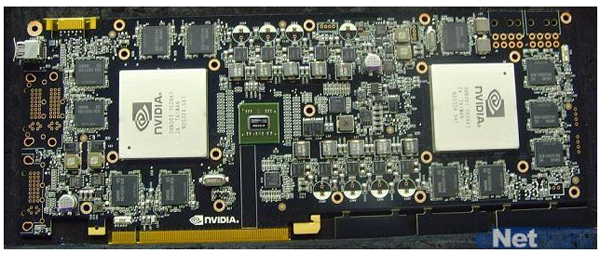
Nvidia's GeForce GTX 595?

Hardmac has an interesting bit of info about a potential future graphics card.


They're calling it the GeForce GTX 595, but the real interesting thing is that the photo of it shows two Fermi GPUs on the board. If true, that'll be some considerable power for, as they mention, a future version of Final Cut Suite.

Combine that with the recent rumor of a Final Cut Studio update sometime around April 2011 and things start becoming interesting.

Thursday, November 18, 2010

Not Enough Disk Space In Target Folder error

I ran across this error in DVD Studio Pro today:

"Not Enough Disk Space In Target Folder"

But, the fix is surprisingly simple; basically it means that the "build" folder isn't large enough to hold the VIDEO_TS folder that DVD Studio needs to make before burning the DVD. Here's a quick way to fix it:

01) In DVD Studio Pro hit Command + , (comma) to open the prefs.
02) Goto the "Destinations" button/tab.
03) For "Show:" select "Build/Format"
04) For "Location:" select someplace that has at least 5GBs of space, preferably 10 Gigs.
05) Tap OK.

Wednesday, November 17, 2010

The AUDIO_TS Folder or Why I didn't sleep last night.

Clients never cease to amaze me. Yesterday I burned off a DVD Review copy for a client and they couldn't play it. Ok, I said to myself, no biggie it was probably a finicky player which thought it had bad disc or bad burn, which happens. I asked them if they tried the backup disc I had also sent along.

"Oh yeah, that one wouldn't play either." At least they were nice about it.

Potential problems filtered though my head. I checked the file structure of the image I kept just in case and it seemed okay; I had tested the DVDs (both of 'em) on a stand-alone player here before sending them and both worked, so I was stumped. A few more rounds on the phone and just out of pure curiosity I asked what they were trying to play it on. "The lobby dvd thing there." Okay, almost helpful. So I decided to ask the exact model number of the player they were using mumbling something about "firmware" and pretending to be interested in some obscure facet of DVD Player technology they couldn't possibly understand.

Googling the model number of this player revealed it was older than some stromatolites which inexorably started me falling down the WikiHole™ until I discovered this little tidbit of info:

The AUDIO_TS folder is there for backwards compatibility with older-than-dirt DVD Players even though it's used for DVD Audio Discs (sometimes called DVD-A discs) which hardly anyone one makes anymore.

Wha? Yup, their DVD Player was so old that it required an AUDIO_TS folder on a video only DVD. Silly me had not included one because I had never needed one before in the history of me burning DVDs for clients.

So lesson here is to really never underestimate client's hardware.

If they have any:
"Yeah all of our employee laptops have DVD players in their laptops."
Oh, okay great, I'll make 1000 copies for you guys by the end of next week."

 NEXT WEEK.

"No those are CD-ROM drives, not DVD Players in your employee laptops. Where's my check?"

Sunday, November 14, 2010

Netflix Key Commands & Hidden or Secret options

A client was showing me a "look" they were going for by showing me a bit of a film on Netflix. While we were watching it I missed the chair I was trying to sit down in, planted my hand on the keyboard and the video paused and I saw Netflix change to it's fast forward and rewind preview thumbnail screens.


Experimenting around I found that like Spacebar, Return will Play/Resume playback but what's more, is that if you hit Shift + Return (Control + Spacebar works also) you'll see Netflix switch to it's thumbnail fast forward rewind interface and even more the Left and Right Arrow Keys will advance and rewind the video (thumbnails) by 10 seconds at a time. Hitting Return will start playback at the new location.

Yeah yeah, not a Final Cut Studio tip but I did stumble upon it (literally) and it was pretty handy to find certain frames that the client wanted to show me.

UPDATE:

Some other interesting things you can do in Netflix.

1. Right Click on a streaming video and select "Silverlight Preferences": lots of stuff to monkey with here. This only seems to work when NOT in full screen mode.

This actually launches a small app located at: /Library/Internet Plug-Ins/Silverlight.plugin/Contents/Resources/Silverlight Preferences

2. I couldn't get it to work on a Mac but apparently you can hold down SHIFT and Right-Click on a Windows machine to bring up a secret debug menu.

3. Diagnostics Menu: Shift + Control + Option + M brings up the hidden diagnostics menu. Again, this works when not in full screen mode.

A: Shift + Control + Option + S = Stream Menu
B: Shift + Control + Option + D = A/V Stats
C: Shift + Control + Option + L = Logging Window
D: Shift + Control + Option + P = Player Info Window
E: Shift + Control + Option + C = Frame Rate + Mysterious Numbers.  Green Controls. (Hit this in not full screen mode [windowed mode I guess?] then drop into full screen mode.)

Wednesday, October 27, 2010

Googling Final Cut Pro 7

So I'm looking up something about FCP7 in Google and Google decides to try and help me. Just thought I'd mention this not just because it's hilarious but because it's pretty sad.

Disk Drill

Disk Drill (FREE while it's in beta) is a data recovery app for recovering all...heck I'll let them explain it:

"Disk Drill, Mac Data Recovery Software, recovers data from HFS/HFS+, FAT, NTFS & other file systems right from your Mac. It helps you undelete Mac OS files using its 2 powerful Mac recovery methods: quick or deep scanning. Disk Drill data recovery locates and recovers deleted files from any mountable media like your main drive, external hard disk, memory cards, etc. Disk Drill can recover photos, music, documents, applications and many other known formats."


It's free for now and pretty shiny spiffy and all.


It's really nice when a client deletes files that don't really look important mainly because they have utterly no idea what they are (.xmp wha?) and what you don't know can't hurt you right?. However, it does tack on billable hours for editors so really, if you think about it Disk Drill has the potential to pay for itself with only a few clueless clients.


It's like a stomach pump for lost files.

Tuesday, October 26, 2010

Ripping Sections of DVDs with Free Stuff

I've been working on a monster of a documentary and some of the footage is showing up on DVDs despite what I've been telling sources and clients. I am typing this in english right?

So here's my (free) workflow for ripping portions of source DVDs to extract the bits of footage that's needed for this project.

You'll need:

MPEG Streamclip
Perian

Optional:
Fairmount

I'm avoiding using Cinematize Pro because, frankly, it's old. I think the last update was something like two years ago. Ok, here we go...

0) Optionally, use Fairmount to copy the DVD's VIDEO_TS to your hard drive. (I'll let you figure this one out on your own but it's of Very Low Complexity)
1) Open up the VIDEO_TS folder and start looking at the .VOB files until you find the one with the clip you need. With Perian, you can open them up in Quicktime Player 7 (which I like to call Quicktime That Doesn't Suck).
2. Make notes of which .VOB files you need and then open them up with MPEG Streamclip. Why not open then with MPEG Streamclip right away? It's your choice but I feel that Quicktime is faster for previewing.

Oh, Quicktime will likely be unable to play the audio since they're MUXed files so if audio is important head straight to MPEG Streamclip here. I should have told you that earlier.

Now, when you open a .VOB file with MPEG Streamclip you may (probably will) see this:

Since the purpose of this post is to just get sections of .VOB files and not the entire file hit "Open 1 file".

3) Now, set In and Out points in MPEG Streamclip using the I and O keys. How about that?
4) Under File in MPEG Streamclip select "Export to Quicktime..." and choose your poison. I like ProRes but select whatever you want. Hit "Make Movie" and grab a sip of coffee.
5) There is no step 5. Hah!

Wednesday, October 20, 2010

VHS Tapes of Death

I've been handed some VHS tapes of some exceptionally rare material for an upcoming documentary I'm going to be editing. After setting up the 'ol VHS capture setup one tape (which thankfully wasn't the ONLY copy in existence) decided to get stuck it it's shell and smear debris all over the VCR's head.

Taking apart the VCR and cleaning the head thoroughly with some alcohol and lint-free cloth the next tape I put in (which was a known good test tape) was extremely snowy. I popped that tape out, popped another one in and it played clear, as hoped. Putting the test tape back in it was fine as well. Subsequent VHS tapes (even the literally only copy left on Earth) all played 100%.

So, like some possessed miniDV tapes of yore, somehow running a second known good tape "fixed" the VCR's sniffles. I'm guessing there was some lint or alcohol still left somewhere that the tape whisked away but thinking about possessed electronics a la Carnage is more fun.