
I've had this happen to me often. For some reason or other the skimmer just decides to stop skimming. I think it knows when I think it's helpful and when it's getting in the way so when it knows that I'm finding it helpful it just quits to maintain it's annoyance.
Two things to try to kick the Skimmer in the pants:
1. Simply go to your project icon in the Browser and double-click it. This will reload the project (sometimes so fast you can't tell anything happened) and the skimmer will start working again.
2. You left Transform on. I have a habit of hitting Shift + T for the transform mode of a clip and forget to hit the Done button (or the blue Square icon button in the Inspector in the Transform section) to turn Transform off. While Transform is on, you don't seem to be able to Skim for some reason.
3. The third thing to try of the two things to try is to tap the "s" key in case you accidentally just toggled Skimming off while you try to reconcile some of the legacy Keyboard Commands with the new (and sometimes not only non-sensical but completely opposite) Key Commands.
Version 10.2.2
Showing posts with label keyboard command. Show all posts
Showing posts with label keyboard command. Show all posts
Thursday, November 12, 2015


Thursday, May 31, 2012
Fast Way to Find Multiple Uses of a Clip
If you've ever edited something with limited footage or too much footage you've probably gone back over it with a client and realized that you've used a shot more than once. Sometimes it's not obvious until you watch the edited piece, especially when you have limited footage and a precise script.
One trick I've used many times is to find the clip in question in the Bin and assign it a color label.
Highlight the clip
Hit Command + Option + any number key. I like using 6 for Green or 3 for Red.
You can toggle this while keeping an eye on the Timeline to see what gets labeled.
Sure there are other ways (like using Find) to locate what clips have been used but having a visual indicator of precisely where they are in the project helps me out tremendously since if they're far apart enough clients tend not to notice.
One trick I've used many times is to find the clip in question in the Bin and assign it a color label.
Highlight the clip
Hit Command + Option + any number key. I like using 6 for Green or 3 for Red.
You can toggle this while keeping an eye on the Timeline to see what gets labeled.
Sure there are other ways (like using Find) to locate what clips have been used but having a visual indicator of precisely where they are in the project helps me out tremendously since if they're far apart enough clients tend not to notice.
Friday, July 15, 2011
Rescuing Dark Footage
Sometimes you'll get footage that you absolutely have to use but it's far too dark as is.
One quick way to possibly rescue the footage is to double it up.
1. Place your dark footage on one track.
2. Color correct and brighten it as best you can (using some filter like Color Corrector 3 Way). Don't worry if it's not perfect, and don't forget to bump up the saturation if you bump up the mid levels a fair amount. The brighter something is the less saturated it tends to be.
3. Option-Click on the clip in the Timeline. (Option-Clicking will just select the Video portion of a clip with linked Audio) then while keeping Option held down, add Shift. Drag the video clip straight up to the track above it and let go of the mouse. You've duplicated the video portion of the clip atop itself.
4. Right-Click on the top video clip.
5. Select "Composite Mode" then "Add". If your clip now seems WAY too bright don't worry. Next step:
6. Bring the opacity down to about 50%. I like to hit Option+W in the Timeline for Toggle Clip Overlays then drag the line over the clip to around 50%. (If you want to get it exactly at 50% using this method hold down Command while you drag the Opacity Overlay Line down and you'll be able to adjust it in single digit increments, cool huh?)
7. Double-Click (or hit Enter with it highlighted) the top clip in the Timeline to load it into the Viewer. Goto the Color Corrector tab and start adjusting the Mids slider to the left (less bright) until the image in the Canvas is more to your liking.
None of this is set it in stone, so feel free to monkey with the method here all you want. It's the general idea of overlaying a clip atop itself, compositing it, lowering it's opacity and then adjusting it's levels that's important.
Around here, since so much of the footage we've received is incompetently underexposed, we've started to call this restoration method "bottom up pattern telegraphing" just to confuse the clients and not hurt their feelings too badly.
One quick way to possibly rescue the footage is to double it up.
1. Place your dark footage on one track.
2. Color correct and brighten it as best you can (using some filter like Color Corrector 3 Way). Don't worry if it's not perfect, and don't forget to bump up the saturation if you bump up the mid levels a fair amount. The brighter something is the less saturated it tends to be.
3. Option-Click on the clip in the Timeline. (Option-Clicking will just select the Video portion of a clip with linked Audio) then while keeping Option held down, add Shift. Drag the video clip straight up to the track above it and let go of the mouse. You've duplicated the video portion of the clip atop itself.
4. Right-Click on the top video clip.
5. Select "Composite Mode" then "Add". If your clip now seems WAY too bright don't worry. Next step:
6. Bring the opacity down to about 50%. I like to hit Option+W in the Timeline for Toggle Clip Overlays then drag the line over the clip to around 50%. (If you want to get it exactly at 50% using this method hold down Command while you drag the Opacity Overlay Line down and you'll be able to adjust it in single digit increments, cool huh?)
7. Double-Click (or hit Enter with it highlighted) the top clip in the Timeline to load it into the Viewer. Goto the Color Corrector tab and start adjusting the Mids slider to the left (less bright) until the image in the Canvas is more to your liking.
None of this is set it in stone, so feel free to monkey with the method here all you want. It's the general idea of overlaying a clip atop itself, compositing it, lowering it's opacity and then adjusting it's levels that's important.
Around here, since so much of the footage we've received is incompetently underexposed, we've started to call this restoration method "bottom up pattern telegraphing" just to confuse the clients and not hurt their feelings too badly.
Toggle Range Check and Canvas Gamma and Brightness
You may notice that when you turn on Toggle Range Check (Control + Z) the gamma of your canvas will change, generally becoming darker with Toggle Range Check on. Why?
It has to do with FCP 6/7's insistence that it pretend it's a studio monitor. You'll see the same kind of shift when you go into System Settings… (Shift + Q) and click on the "Playback Control" and toggle Gamma Correction from "Approximate" to "Accurate".

FCP's Toggle Range Check is in effect emulating a Broadcast Monitor when Toggle Range Check is on, that's the main reason you'll see a gamma shift.
If you set Gamma Correction to Accurate, FCP will shift the gamma of the canvas to emulate a broadcast monitor and you'll see no change in gamma when toggling Toggle Range Check because it's already in "emulation" mode, as I like to call it.
Accurate is pseudo-emulation mode.
Approximate is semi-WYSIWYG.
Toggle Range Check is pseudo-emulation mode.
Btw, strange as it may sound, if you're not using a TV or studio monitor setting this option to Approximate is more accurate. You may see your footage look a bit less contrasty but that's likely more accurate in most cases. FCP won't apply a bit of gamma juju and jump from 1.8 to 2.2 because it won't assume everything is 1.8.
I like to keep this setting to Approximate because in my case, with my setup, it's more accurate to what's been actually loaded into FCP and more closely matches the raw footage. Exporting to Quicktime is another matter entirely.
None of this holds a candle to a real broadcast monitor or decent TV though for gamma/color grading/correction.
It has to do with FCP 6/7's insistence that it pretend it's a studio monitor. You'll see the same kind of shift when you go into System Settings… (Shift + Q) and click on the "Playback Control" and toggle Gamma Correction from "Approximate" to "Accurate".
FCP's Toggle Range Check is in effect emulating a Broadcast Monitor when Toggle Range Check is on, that's the main reason you'll see a gamma shift.
If you set Gamma Correction to Accurate, FCP will shift the gamma of the canvas to emulate a broadcast monitor and you'll see no change in gamma when toggling Toggle Range Check because it's already in "emulation" mode, as I like to call it.
Accurate is pseudo-emulation mode.
Approximate is semi-WYSIWYG.
Toggle Range Check is pseudo-emulation mode.
Btw, strange as it may sound, if you're not using a TV or studio monitor setting this option to Approximate is more accurate. You may see your footage look a bit less contrasty but that's likely more accurate in most cases. FCP won't apply a bit of gamma juju and jump from 1.8 to 2.2 because it won't assume everything is 1.8.
I like to keep this setting to Approximate because in my case, with my setup, it's more accurate to what's been actually loaded into FCP and more closely matches the raw footage. Exporting to Quicktime is another matter entirely.
None of this holds a candle to a real broadcast monitor or decent TV though for gamma/color grading/correction.
Friday, June 24, 2011
The Clip's Master Clip Is Not Present - Error
FCP has a long standing bug where when you have the playhead in the Timeline over a clip and hit SHIFT + F for Reveal Master Clip, you'll inexplicably see this:
 Restarting FCP will not help.
Reconnecting the clip will not help.
Trashing prefs hasn't helped me in this case.
Bizarrely, the clip will be fully visible in your Browser and/or Bin yet FCP will simply not be able to find it. It may be able to find other clips in the Timeline that reside in the same Bin as the errant clip, though.
I have no solution but it's an irritating, frustrating bug.
See, with the Timeline in the foreground and placing the playhead over a clip and tapping The F Key will perform a Matchframe where the frame -and Master Clip- that the playhead is over will appear in the Viewer.
But, hitting SHIFT + F with the Timeline in the foreground and placing the playhead over a clip and tapping F will perform a Reveal Master Clip; only sometimes it will just stop working. I have no idea why.
A workaround this to find a Master Clip and have it load into the Viewer is, like I mentioned, just place the playhead over the clip, make sure the Timeline is in the foreground (active) and tap the F key. You won't see the clip in the Bin or Browser but you'll be able to scrub around to see what else the clip holds footage-wise.
It's an incomplete workaround however especially if you need to see the following and preceding clips around the clip you're interested in. You'll likely find yourself doing this a lot while cutting a documentary and know that the footage is listed chronologically; a Reveal Master Clip would show you where the clip rests in accordance to the order the clips were shot in.
Another quirk is that if you do hit OK to "add a master clip to the browser" it'll do just that; and it'll find it if you load that into the Timeline (or Viewer, Reveal Master Clip works if the Viewer is the active window as well) and perform a Reveal Master Clip. Frustrating.
So there is a solution if you're willing to add a master clip to the browser (at root level) for every clip that suffers from this bug. But there's no guarantee that it won't randomly happen again. In fact, if you do add a master clip to the browser, place some of it in the Timeline, then for fun delete the newly created master clip from the Browser, FCP will toss up the Master Clip Not Present error.

Reconnecting the clip will not help.
Trashing prefs hasn't helped me in this case.
Bizarrely, the clip will be fully visible in your Browser and/or Bin yet FCP will simply not be able to find it. It may be able to find other clips in the Timeline that reside in the same Bin as the errant clip, though.
I have no solution but it's an irritating, frustrating bug.
See, with the Timeline in the foreground and placing the playhead over a clip and tapping The F Key will perform a Matchframe where the frame -and Master Clip- that the playhead is over will appear in the Viewer.
But, hitting SHIFT + F with the Timeline in the foreground and placing the playhead over a clip and tapping F will perform a Reveal Master Clip; only sometimes it will just stop working. I have no idea why.
A workaround this to find a Master Clip and have it load into the Viewer is, like I mentioned, just place the playhead over the clip, make sure the Timeline is in the foreground (active) and tap the F key. You won't see the clip in the Bin or Browser but you'll be able to scrub around to see what else the clip holds footage-wise.
It's an incomplete workaround however especially if you need to see the following and preceding clips around the clip you're interested in. You'll likely find yourself doing this a lot while cutting a documentary and know that the footage is listed chronologically; a Reveal Master Clip would show you where the clip rests in accordance to the order the clips were shot in.
Another quirk is that if you do hit OK to "add a master clip to the browser" it'll do just that; and it'll find it if you load that into the Timeline (or Viewer, Reveal Master Clip works if the Viewer is the active window as well) and perform a Reveal Master Clip. Frustrating.
So there is a solution if you're willing to add a master clip to the browser (at root level) for every clip that suffers from this bug. But there's no guarantee that it won't randomly happen again. In fact, if you do add a master clip to the browser, place some of it in the Timeline, then for fun delete the newly created master clip from the Browser, FCP will toss up the Master Clip Not Present error.
Thursday, April 14, 2011
Find Footage Faster with Final Cut Pro's Find Window
I'm continually surprised by what some editors I talk to don't know or know about but for some reason don't do or use.
When a deadline permits or there's just a vast amount of footage that was shot while I wasn't around I go through all the clips and even before pulling "selects" I label, color label and comment on bunches of it.
Why?
Because when you're sitting down with the script or director or both and are looking for footage you can now search for clips very quickly. Let's run though the ways:
1) In FCP, in a bin you know you can rename a clip. You can also second-click on it and rename the file to match the clips name and vice-versa. I have some naming conventions I have become attached to over the years when people forget slates: INT-S02-Bob-Single for Interior, scene 02, Bob's Single Shot or something like EXT-Building-Pan Left-Wide.
So go through and name all your clips to something helpful and descriptive. If you don't know what something is or who someone is give 'em a nickname: Yellow Building, Ball Cap Hammerer, Short Pants, whatever, just as long as you know what you're talking about.
2) Highlight a clip and hit Command + 9 for the Item Properties window. You'll see four tabs: Format, Timing, Logging and Film.
Format has a lot of helpful info about the clip.
Timing is what you'd expect. Length, In point, Out point, Duration and some other stuff which is also shown in other tabs.
Logging is the most helpful for organizing. We'll get into this in a little more detail in a little bit.
Film is again, similar to the others but a lot of these should be filled in when you ingest.
Now, go to the Logging tab and see all the blank space? You can fill that up with helpful and searchable info. Take Description for example. Click on the gray area where text should be to the right of the word Description. You'll see a text box magically appear with a happily blinking cursor. Type your description into here.
Be aware that since the OK button is the default, if you type then hit return you'll save your change and close this window. Try and get into the habit -if you're going to modify more than one field- of hitting the Tab key until you've filled in everything you want to.
Bizarrely enough unlike most other places in Mac OS X, hitting Shift + Tab does not go back to the previous text entry box. I have no idea what it doesn't.
3) Close the Item Properties window and then add some info for other clips. Any field that you want to. Close the Item Properties window. Now, with the Bin as the active window tap Command + F for the Find window.
Search: Set this to whatever suits your needs. Usually the default is enough though.
For: All Media. Again change this if you need to. This is actually a quite powerful setting as you can search for All, Used or Unused Media.
Results: Replace Find Results starts your results out anew upon each search. I find this one most helpful.
Below those you'll see "Any Column" and "Contains". This is just like Find in the Finder. But, take a look at all the things listed under Any Column. Anything you change in the Item Properties Window you can search for here even if it's not listed. If it's not listed just use "Any Column."
4) Hit Find All. Why not Find Next even though it's the default? It's a personal preference for me; I like the little window of everything found in that search to pop up. I wish Find All was the default button actually.
So you can see that once you fill in some basic info into the Item Properties window or at the very least name all your clips something helpful, you can search and find them all at once quickly and easily.
I've found this to speed up editing overall tremendously. At the bare minimum I'll name all the clips, green label all the stuff I think is best, red label everything I think is useless then with a quick Command + F and a search term I have all the EXT or INT or CU or ECU or Wide or Tilt or Pans listed. Or "Bob INT" or "Building Pan" or whatever.
The search is a handy way to exploit your own organizational styles. I've been startled by some client's reaction to how quickly I can find a very specific clip seconds after they ask for it while we're editing together.
Explore around the Item Properties window in conjunction with the Find window and see what suits your organizational method best.
When a deadline permits or there's just a vast amount of footage that was shot while I wasn't around I go through all the clips and even before pulling "selects" I label, color label and comment on bunches of it.
Why?
Because when you're sitting down with the script or director or both and are looking for footage you can now search for clips very quickly. Let's run though the ways:
1) In FCP, in a bin you know you can rename a clip. You can also second-click on it and rename the file to match the clips name and vice-versa. I have some naming conventions I have become attached to over the years when people forget slates: INT-S02-Bob-Single for Interior, scene 02, Bob's Single Shot or something like EXT-Building-Pan Left-Wide.
So go through and name all your clips to something helpful and descriptive. If you don't know what something is or who someone is give 'em a nickname: Yellow Building, Ball Cap Hammerer, Short Pants, whatever, just as long as you know what you're talking about.
2) Highlight a clip and hit Command + 9 for the Item Properties window. You'll see four tabs: Format, Timing, Logging and Film.
Format has a lot of helpful info about the clip.
Timing is what you'd expect. Length, In point, Out point, Duration and some other stuff which is also shown in other tabs.
Logging is the most helpful for organizing. We'll get into this in a little more detail in a little bit.
Film is again, similar to the others but a lot of these should be filled in when you ingest.
Now, go to the Logging tab and see all the blank space? You can fill that up with helpful and searchable info. Take Description for example. Click on the gray area where text should be to the right of the word Description. You'll see a text box magically appear with a happily blinking cursor. Type your description into here.
Be aware that since the OK button is the default, if you type then hit return you'll save your change and close this window. Try and get into the habit -if you're going to modify more than one field- of hitting the Tab key until you've filled in everything you want to.
Bizarrely enough unlike most other places in Mac OS X, hitting Shift + Tab does not go back to the previous text entry box. I have no idea what it doesn't.
3) Close the Item Properties window and then add some info for other clips. Any field that you want to. Close the Item Properties window. Now, with the Bin as the active window tap Command + F for the Find window.
Search: Set this to whatever suits your needs. Usually the default is enough though.
For: All Media. Again change this if you need to. This is actually a quite powerful setting as you can search for All, Used or Unused Media.
Results: Replace Find Results starts your results out anew upon each search. I find this one most helpful.
Below those you'll see "Any Column" and "Contains". This is just like Find in the Finder. But, take a look at all the things listed under Any Column. Anything you change in the Item Properties Window you can search for here even if it's not listed. If it's not listed just use "Any Column."
4) Hit Find All. Why not Find Next even though it's the default? It's a personal preference for me; I like the little window of everything found in that search to pop up. I wish Find All was the default button actually.
So you can see that once you fill in some basic info into the Item Properties window or at the very least name all your clips something helpful, you can search and find them all at once quickly and easily.
I've found this to speed up editing overall tremendously. At the bare minimum I'll name all the clips, green label all the stuff I think is best, red label everything I think is useless then with a quick Command + F and a search term I have all the EXT or INT or CU or ECU or Wide or Tilt or Pans listed. Or "Bob INT" or "Building Pan" or whatever.
The search is a handy way to exploit your own organizational styles. I've been startled by some client's reaction to how quickly I can find a very specific clip seconds after they ask for it while we're editing together.
Explore around the Item Properties window in conjunction with the Find window and see what suits your organizational method best.
Thursday, March 31, 2011
Fixing Offset Audio Levels
MANY, many people will offset audio levels while on set to avoid having the audio peak. For example they'll set channel 2 to be lower than channel 1.
This way when the audio does peak, it'll peak in channel 1 but not in 2 so you have clean audio. It's a great zero-cost way to have a little insurance that you have clean un-peaked audio. But it's a pain to clean up in post if you don't know about it before hand.
Tip #1: Listen to the footage with a decent pair of headphones.
An edit I'm working with now has the audio levels all over the place. My guess is that when they were shooting the cameraperson adjusted the audio levels on the camera when he or she remembered to; it's not consistent at all.
Here's my quick fix for it…after it's been dropped into a timeline. Ideally you'd only set one target audio track in the Timeline then center and boost from there but if your assistant didn't check the audio with headphones before hand…
In this case I only need channels 1 & 2.
1. Highlight the clip with the offset audio levels. In this case Ch1 is GOOD Ch2 is BAD.
2. Hit Option + L which is Toggle Stereo Pair. You'll see the "bow ties" on the clip vanish.
3. Hold down Option and click on the BAD channel, in this case Ch2. This lets you highlight just one of the stereo tracks.
4. With the BAD track as the only thing highlighted hit Control + B for Toggle Clip Enable. This will un-enable that channel. Disenable? Nonenable?
5. Hold down Option and click on the GOOD channel.
6. Now, hit Control + . (period). This will Pan Center the audio track.
7. If you need to boost it's level you can:
A: While it's still highlighted hit Control + + (plus) or - (minus) to bring it up or down 1 dB at a time, or use Control + ] (right bracket) or [ (left bracket) to bring it up in increments of I think, 3 dBs at a time.
B: While the clip is highlighted hit Option + Command + L to adjust Levels… (Unless you know the dB of the clip as is I suggest using "Absolute" here)
C: Head to Modify > Audio > Apply Normalization Gain (this does not have a key command by default, unfortunately) This will set the loudest portion of the audio to what you tell it here.
Be aware that if you try to set the audio tracks back as a stereo pair via Option + L after you make adjustments you'll undo most of the audio work you just did. I just leave them un-stereo-paired.
I prefer trying these in this order as usually option A works for me.
This way when the audio does peak, it'll peak in channel 1 but not in 2 so you have clean audio. It's a great zero-cost way to have a little insurance that you have clean un-peaked audio. But it's a pain to clean up in post if you don't know about it before hand.
Tip #1: Listen to the footage with a decent pair of headphones.
An edit I'm working with now has the audio levels all over the place. My guess is that when they were shooting the cameraperson adjusted the audio levels on the camera when he or she remembered to; it's not consistent at all.
Here's my quick fix for it…after it's been dropped into a timeline. Ideally you'd only set one target audio track in the Timeline then center and boost from there but if your assistant didn't check the audio with headphones before hand…
In this case I only need channels 1 & 2.
1. Highlight the clip with the offset audio levels. In this case Ch1 is GOOD Ch2 is BAD.
2. Hit Option + L which is Toggle Stereo Pair. You'll see the "bow ties" on the clip vanish.
3. Hold down Option and click on the BAD channel, in this case Ch2. This lets you highlight just one of the stereo tracks.
4. With the BAD track as the only thing highlighted hit Control + B for Toggle Clip Enable. This will un-enable that channel. Disenable? Nonenable?
5. Hold down Option and click on the GOOD channel.
6. Now, hit Control + . (period). This will Pan Center the audio track.
7. If you need to boost it's level you can:
A: While it's still highlighted hit Control + + (plus) or - (minus) to bring it up or down 1 dB at a time, or use Control + ] (right bracket) or [ (left bracket) to bring it up in increments of I think, 3 dBs at a time.
B: While the clip is highlighted hit Option + Command + L to adjust Levels… (Unless you know the dB of the clip as is I suggest using "Absolute" here)
C: Head to Modify > Audio > Apply Normalization Gain (this does not have a key command by default, unfortunately) This will set the loudest portion of the audio to what you tell it here.
Be aware that if you try to set the audio tracks back as a stereo pair via Option + L after you make adjustments you'll undo most of the audio work you just did. I just leave them un-stereo-paired.
I prefer trying these in this order as usually option A works for me.
Wednesday, March 23, 2011
Moving Just the Video of A Linked Clip Up One Level
Let's say you're cutting a long green screen project and during editing you forgot to set your target track to something besides V1 so you don't have a lower track to put the green screen background on.
You need to move all the video up at least one track but all the video is Linked to it's audio; how can you move just the video up a track quickly without Unlinking and Relinking the audio?
1. Hit Shift + Z to show the whole Sequence in the Timeline.
2. Hold down Option then click and drag-select just the video portions of the footage.
Holding down Option while you click on Linked footage temporarily Unlinks them. You'll be able to highlight just the video of Linked footage (or audio if you so choose).
3. Now, with just the Video highlighted, let go of the mouse and hit Option + Up Arrow which will move the highlighted video up one video track. Obviously make sure that the track above it is empty.
Now you have your video on V2 (or at least not on V1) and it's still Linked to it's respective audio.
You need to move all the video up at least one track but all the video is Linked to it's audio; how can you move just the video up a track quickly without Unlinking and Relinking the audio?
1. Hit Shift + Z to show the whole Sequence in the Timeline.
2. Hold down Option then click and drag-select just the video portions of the footage.
Holding down Option while you click on Linked footage temporarily Unlinks them. You'll be able to highlight just the video of Linked footage (or audio if you so choose).
3. Now, with just the Video highlighted, let go of the mouse and hit Option + Up Arrow which will move the highlighted video up one video track. Obviously make sure that the track above it is empty.
Now you have your video on V2 (or at least not on V1) and it's still Linked to it's respective audio.
Thursday, March 17, 2011
Quickly Editing Scratch Track Voice Overs
Sometimes you don't have the professional VO talent yet so you lay down a scratch track VO to rough the edit to. When doing long projects like this I've gotten into the habit of listening to the scratch track VO at 2x speed (Tap the L key twice) so running through them and cutting out the mistakes takes a lot less time.
And since it's a scratch track it's not terribly important or worth taking too much time on. For me (and likely for you) the scratch track is just a reference VO to get shots in order and very roughly timed in.
FCP has some pretty decent scrubbing abilities (Unlike Audacity…still) so use them to shorten some of the time spent with stuff like this.
Keep the script in front of you and follow along and you shouldn't have too much trouble keeping up at 2x speed; just remember to listen for long pauses (which will be shortened relatively), mistakes and all that fun stuff…like sneezes.
And since it's a scratch track it's not terribly important or worth taking too much time on. For me (and likely for you) the scratch track is just a reference VO to get shots in order and very roughly timed in.
FCP has some pretty decent scrubbing abilities (Unlike Audacity…still) so use them to shorten some of the time spent with stuff like this.
Keep the script in front of you and follow along and you shouldn't have too much trouble keeping up at 2x speed; just remember to listen for long pauses (which will be shortened relatively), mistakes and all that fun stuff…like sneezes.
Wednesday, March 16, 2011
Using A Zoom H4n To Record Directly Into Final Cut Pro
You probably already have or at least know about Zoom's H4n. It shows up on lots of indie films and industrials now days. I have one I love and use pretty often for VOs.

A friend was surprised when I showed them how you can use the H4n to record directly into Final Cut Pro using the (Option + 0) -that's a zero- Voice Over tool.
1. Set up Final Cut so you're ready to record the VO.
2. Plug in the H4n using a USB cable.
3. THEN turn it on. (you can plug in the USB cable and select it after, but it's likely your H4n is off to begin with)
Note: the H4n may turn on automatically when you plug in the USB cable. There's an issue here that you may run into and should be aware of: if you hear a whine noise or some how unclean audio try plugging the H4n into it's AC power THEN turn it on, THEN plug in the USB cable and then go to Menu > Audio I/F > Connect. Don't forget to select your Frequency if you need to.
4. Select "Audio I/F"
4. Choose your kHz.
5. Select "Connect".
6. In FCP hit Option + 0 to open the VO Tool window.
7. Under "Source" select "H4".
8. In your TimeLine set an In and Out point for the VO
(NO you don't need to lay video slugs down to record VO…although that works as well, my friend's method, btw)
9. Hit record in the VO Tool window.
BONUS TIP:
If you want to use your H4n to record directly into Audacity, say on a laptop that can't run FCP or something, you need to first go to Audacity's preferences and go to Devices > Recording > Device then select "H4" there then hit Ok.
You can also select the H4n as a playback device if needed, routing audio from the Mac to the H4n.

A friend was surprised when I showed them how you can use the H4n to record directly into Final Cut Pro using the (Option + 0) -that's a zero- Voice Over tool.
1. Set up Final Cut so you're ready to record the VO.
2. Plug in the H4n using a USB cable.
3. THEN turn it on. (you can plug in the USB cable and select it after, but it's likely your H4n is off to begin with)
Note: the H4n may turn on automatically when you plug in the USB cable. There's an issue here that you may run into and should be aware of: if you hear a whine noise or some how unclean audio try plugging the H4n into it's AC power THEN turn it on, THEN plug in the USB cable and then go to Menu > Audio I/F > Connect. Don't forget to select your Frequency if you need to.
4. Select "Audio I/F"
4. Choose your kHz.
5. Select "Connect".
6. In FCP hit Option + 0 to open the VO Tool window.
7. Under "Source" select "H4".
8. In your TimeLine set an In and Out point for the VO
(NO you don't need to lay video slugs down to record VO…although that works as well, my friend's method, btw)
9. Hit record in the VO Tool window.
BONUS TIP:
If you want to use your H4n to record directly into Audacity, say on a laptop that can't run FCP or something, you need to first go to Audacity's preferences and go to Devices > Recording > Device then select "H4" there then hit Ok.
You can also select the H4n as a playback device if needed, routing audio from the Mac to the H4n.
Wednesday, February 23, 2011
Play to Out Point...then stop.
You've selected an In (I) and Out (O) point for the current Timeline and want to see how the piece feels when it stops at your Out point. Easy, just place the playhead before the Out point and hit Shift + P for "Play to Out". It's kinda like clotheslining the playhead.
This will play from the current frame to the Out Point.
It's different than Shift + \ which is Play In to Out and only plays what is marked between (and including) the In and Out points of a timeline or clip.
I find Shift + P to be really helpful in judging when a clip should end especially if I'm breaking up long edits into smaller more digestible chunks.

This will play from the current frame to the Out Point.
It's different than Shift + \ which is Play In to Out and only plays what is marked between (and including) the In and Out points of a timeline or clip.
I find Shift + P to be really helpful in judging when a clip should end especially if I'm breaking up long edits into smaller more digestible chunks.
Friday, December 17, 2010
The Hidden "H" 50% Key
Here's one I'll bet few people know.
Place your cursor over either the Viewer or the Canvas then hold down the H key.
You should see the Viewer or Canvas pop out at 50% size no matter what it was originally set to. Why? I dunno, it's probably some function or preference or something I've missed all these years. But it's pretty cool nonetheless and could be handy since 50% gives a clearer representation of your footage than odd numbered percentages, although 50% won't reveal interlacing as 100% does. Man I'm up late.
Place your cursor over either the Viewer or the Canvas then hold down the H key.
You should see the Viewer or Canvas pop out at 50% size no matter what it was originally set to. Why? I dunno, it's probably some function or preference or something I've missed all these years. But it's pretty cool nonetheless and could be handy since 50% gives a clearer representation of your footage than odd numbered percentages, although 50% won't reveal interlacing as 100% does. Man I'm up late.
Sunday, November 14, 2010
Netflix Key Commands & Hidden or Secret options
A client was showing me a "look" they were going for by showing me a bit of a film on Netflix. While we were watching it I missed the chair I was trying to sit down in, planted my hand on the keyboard and the video paused and I saw Netflix change to it's fast forward and rewind preview thumbnail screens.

Experimenting around I found that like Spacebar, Return will Play/Resume playback but what's more, is that if you hit Shift + Return (Control + Spacebar works also) you'll see Netflix switch to it's thumbnail fast forward rewind interface and even more the Left and Right Arrow Keys will advance and rewind the video (thumbnails) by 10 seconds at a time. Hitting Return will start playback at the new location.
Yeah yeah, not a Final Cut Studio tip but I did stumble upon it (literally) and it was pretty handy to find certain frames that the client wanted to show me.
UPDATE:
Some other interesting things you can do in Netflix.
1. Right Click on a streaming video and select "Silverlight Preferences": lots of stuff to monkey with here. This only seems to work when NOT in full screen mode.
This actually launches a small app located at: /Library/Internet Plug-Ins/Silverlight.plugin/Contents/Resources/Silverlight Preferences
2. I couldn't get it to work on a Mac but apparently you can hold down SHIFT and Right-Click on a Windows machine to bring up a secret debug menu.
3. Diagnostics Menu: Shift + Control + Option + M brings up the hidden diagnostics menu. Again, this works when not in full screen mode.
A: Shift + Control + Option + S = Stream Menu
B: Shift + Control + Option + D = A/V Stats
C: Shift + Control + Option + L = Logging Window
D: Shift + Control + Option + P = Player Info Window
E: Shift + Control + Option + C = Frame Rate + Mysterious Numbers. Green Controls. (Hit this in not full screen mode [windowed mode I guess?] then drop into full screen mode.)

Yeah yeah, not a Final Cut Studio tip but I did stumble upon it (literally) and it was pretty handy to find certain frames that the client wanted to show me.
UPDATE:
Some other interesting things you can do in Netflix.
1. Right Click on a streaming video and select "Silverlight Preferences": lots of stuff to monkey with here. This only seems to work when NOT in full screen mode.
This actually launches a small app located at: /Library/Internet Plug-Ins/Silverlight.plugin/Contents/Resources/Silverlight Preferences
2. I couldn't get it to work on a Mac but apparently you can hold down SHIFT and Right-Click on a Windows machine to bring up a secret debug menu.
3. Diagnostics Menu: Shift + Control + Option + M brings up the hidden diagnostics menu. Again, this works when not in full screen mode.
A: Shift + Control + Option + S = Stream Menu
B: Shift + Control + Option + D = A/V Stats
C: Shift + Control + Option + L = Logging Window
D: Shift + Control + Option + P = Player Info Window
E: Shift + Control + Option + C = Frame Rate + Mysterious Numbers. Green Controls. (Hit this in not full screen mode [windowed mode I guess?] then drop into full screen mode.)
Saturday, October 2, 2010
Why Text Can't be Dragged Any Longer
You've placed some text into your Timeline and need to drag it out (yes, you can COMMAND + J it instead, I know) but for some reason you can't drag it any longer. Cthulhu has decided to make your afternoon a little more hassleful but you can fight back.

You need the lower text element to be as long as the other but it won't drag (extend) any further. Here's why:

If you double click the text element in the Timeline to load it into the Viewer (that's what those perfs are telling you and if you don't know what a perf is I'll cry and feel even older, thanks) you'll see that the portion of the text you've placed into the Timeline, as demarcated by the In and Out points is near the end of the text element. You can't drag it past the "end" of the text element. The solution? Move the In and Out points of the text element.

This is what it'll look like after you move the In and Out points of the text element further back. Since text elements don't change (default ones anyway) the text on screen will look the same. But how can you move both simultaneously?
Hold down SHIFT and Click and Drag either the In or Out point and you'll be able to slide both, simultaneously left (or right if for some reason you want to do that).
Done.
Btw, and I should have mentioned this originally with the post but as mentioned in the comments for this post you can tap S in FCP and Slip the text element right in the Timeline. Thanks for reminding me, folks!

You need the lower text element to be as long as the other but it won't drag (extend) any further. Here's why:

If you double click the text element in the Timeline to load it into the Viewer (that's what those perfs are telling you and if you don't know what a perf is I'll cry and feel even older, thanks) you'll see that the portion of the text you've placed into the Timeline, as demarcated by the In and Out points is near the end of the text element. You can't drag it past the "end" of the text element. The solution? Move the In and Out points of the text element.

This is what it'll look like after you move the In and Out points of the text element further back. Since text elements don't change (default ones anyway) the text on screen will look the same. But how can you move both simultaneously?
Hold down SHIFT and Click and Drag either the In or Out point and you'll be able to slide both, simultaneously left (or right if for some reason you want to do that).
Done.
Btw, and I should have mentioned this originally with the post but as mentioned in the comments for this post you can tap S in FCP and Slip the text element right in the Timeline. Thanks for reminding me, folks!
How to Un-Nest a Nested Sequence
It you've nested a portion of your timeline and for some reason need it not nested to make some adjustments there's a simple way to un-nest a nested sequence.
1) Find the Nest in the Browser.
2) Drag it to where you want it in the Timeline (you may need to be mindful of target tracks depending on the nest and timeline settings) but before you let go of the mouse...
3) Hold down COMMAND. That is to say, hold down COMMAND after you've begun dragging the nest into the Timeline. When you hold COMMAND you'll see the "shadow" of the nest explode to un-nested.
4) Let go of the mouse and you're done.
1) Find the Nest in the Browser.
2) Drag it to where you want it in the Timeline (you may need to be mindful of target tracks depending on the nest and timeline settings) but before you let go of the mouse...
3) Hold down COMMAND. That is to say, hold down COMMAND after you've begun dragging the nest into the Timeline. When you hold COMMAND you'll see the "shadow" of the nest explode to un-nested.
4) Let go of the mouse and you're done.
Friday, July 9, 2010
Setting Nothing as a Target Track
Here's something that's handier than you'd think.
When you're doing an assembly (say for a feature) and you want the image but not the audio or vice-versa rather than reach for the mouse to unselect a target track (ie...set it to nothing) try this:
For no video target track hit F6 + 0 (zero) or hit SHIFT + F6. Either way works.
For no audio 1 target track hit F7 + 0 (zero) or hit SHIFT + F7. Again, either way works.
For no audio 2 target track hit F8 + 0 (zero) or hit SHIFT + F8. Both function identically.
I find Shift + the f-key to be more convenient for me but see which works best for you. Some people like to keep track of track numbers in their head and Track 0 (zero) is "no target" in their way of thinking which is a great way of thinking about it.
The upshot of this is that since there are two commands that have the same function you can remap Shift+ the F-key to something else if you want.
When you're doing an assembly (say for a feature) and you want the image but not the audio or vice-versa rather than reach for the mouse to unselect a target track (ie...set it to nothing) try this:
For no video target track hit F6 + 0 (zero) or hit SHIFT + F6. Either way works.
For no audio 1 target track hit F7 + 0 (zero) or hit SHIFT + F7. Again, either way works.
For no audio 2 target track hit F8 + 0 (zero) or hit SHIFT + F8. Both function identically.
I find Shift + the f-key to be more convenient for me but see which works best for you. Some people like to keep track of track numbers in their head and Track 0 (zero) is "no target" in their way of thinking which is a great way of thinking about it.
The upshot of this is that since there are two commands that have the same function you can remap Shift+ the F-key to something else if you want.
Friday, May 28, 2010
Set Logging Bin Keyboard Command

I load in a great deal of footage with Command+Shift+8 (Log and Transfer) and when things are hectic and I need to keep this footage separate from that footage or whatever I just dump them into separate bins.
My temp assistant saw me madly hitting keys before loading in the footage and I had to think for a second of what I was doing.
0. Hit Option+J and set "Set Logging Bin" to be Command+Shift+B. Now make the Browser window active.
1. New Bin is Command+B.
2. After it's created type in a name for it.
3. Then hit Command+Shift+B (don't bother with Return) to set the name and Set Logging Bin.
It's quick and keeps things fresh and organized.
Monday, February 1, 2010
Moving an item and all its motion Keyframes all at once
Lets say you have a still image keyframed to move across the screen from point a to point b over so many seconds via it's Center positions. But, you need it to move in the lower portion of the frame rather than the top as it is now.
Easy. Hold down Shift+Command and then (you'll see the cursor turn into a hand - without arrows) hold them down while clicking and dragging your image along with it's keyframe paths all together to a new location.
You may have to zoom out of the canvas a bit to see both ends of your keyframe path. It will set extra keyframes along the path but they shouldn't alter the motion.
Easy. Hold down Shift+Command and then (you'll see the cursor turn into a hand - without arrows) hold them down while clicking and dragging your image along with it's keyframe paths all together to a new location.
You may have to zoom out of the canvas a bit to see both ends of your keyframe path. It will set extra keyframes along the path but they shouldn't alter the motion.
Monday, January 25, 2010
Media Offline Thumbnail Icon Bug
Today while I was editing someone handily managed to not only trip near where I was sitting but managed to yank out a firewire cable as well.
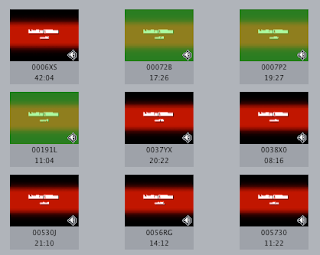
Naturally Final Cut Pro freaked out. But, since I habitually save every few minutes and had FCP set to save every 15mins since it's a complicated project I fired up FCP again after hooking the HD back up and saw that where there once were thumbnails of clips, there were now Media Offline icons even though the media wasn't offline. Double clicking a clip or dragging it to the Canvas or Timeline or hitting F10 would place it in the Timeline normally and allow it to be watched. But those icon thumbnails...
I tried re-re-connecting the clips and they did, successfully, but the Media Offline icons remained. Since I needed to see the thumbnails, and since the client was sitting right next to me, I found out that rather than trashing any caches, or monkeying with any files, if I held down Shift+Control and moved the mouse over a thumbnail to set a new poster-frame, FCP abandoned the embarrassing Media Offline icons and left the clip with a shiny new poster-frame.
Oddly, you need to be set to the Selection Tool in order for Shift+Control to work here.

Naturally Final Cut Pro freaked out. But, since I habitually save every few minutes and had FCP set to save every 15mins since it's a complicated project I fired up FCP again after hooking the HD back up and saw that where there once were thumbnails of clips, there were now Media Offline icons even though the media wasn't offline. Double clicking a clip or dragging it to the Canvas or Timeline or hitting F10 would place it in the Timeline normally and allow it to be watched. But those icon thumbnails...
I tried re-re-connecting the clips and they did, successfully, but the Media Offline icons remained. Since I needed to see the thumbnails, and since the client was sitting right next to me, I found out that rather than trashing any caches, or monkeying with any files, if I held down Shift+Control and moved the mouse over a thumbnail to set a new poster-frame, FCP abandoned the embarrassing Media Offline icons and left the clip with a shiny new poster-frame.
Oddly, you need to be set to the Selection Tool in order for Shift+Control to work here.
Tuesday, January 5, 2010
What does that installer install?
When you have an installer launched, before you actually install whatever it is, you can hit Command + I to "Show Files" which will present you a list of what files will be installed. It won't mention any files that are created when the installed application launches but you'll see what the installer will dump onto your HD.
Subscribe to:
Posts (Atom)


 Posts
Posts

