
Here's a simple one that's VERY handy.
You can use Command + Tab to bring up the Application Switcher and keep tapping tab to cycle to the right (including wrap-around). But here's the one that some people don't know about: once you have the app switcher up you can tap ~ (tilde) to cycle to the left with wrap-around.
Handy if you're doing more than quickly using Command + Tab to switch between two apps; if you're using three or more this is a very fast way to toggle between apps and easier on the fingers since some people use Command + Shift + Tab to cycle to the left.
Monday, May 12, 2008


Apple kbase Updates
Apple updated a fair bit of FCS knowledge base articles the other night:
Color: Video out from Matrox MXO may appear stretched
Compressor: Don't export from Final Cut Pro using a QuickCluster
Fibre Channel Hardware Compatibility Guide
Final Cut Express: DV widescreen 16:9 workflow for iDVD
Final Cut Pro 6.0.2: Holding the Option key invokes snapping
Final Cut Pro and Final Cut Express: Application-specific key functions with the aluminum Apple Keyboard (2007)
Final Cut Pro: Disabling visibility and its effects on rendering
Final Cut Pro: Dropped Frames--Causes and Solutions
Final Cut Pro: Render required when outputting to tape
Final Cut Pro: Tips for archiving memory card-based media
Final Cut Studio: Encoders not seen in export options
You can subscribe to the lists here.
Color: Video out from Matrox MXO may appear stretched
Compressor: Don't export from Final Cut Pro using a QuickCluster
Fibre Channel Hardware Compatibility Guide
Final Cut Express: DV widescreen 16:9 workflow for iDVD
Final Cut Pro 6.0.2: Holding the Option key invokes snapping
Final Cut Pro and Final Cut Express: Application-specific key functions with the aluminum Apple Keyboard (2007)
Final Cut Pro: Disabling visibility and its effects on rendering
Final Cut Pro: Dropped Frames--Causes and Solutions
Final Cut Pro: Render required when outputting to tape
Final Cut Pro: Tips for archiving memory card-based media
Final Cut Studio: Encoders not seen in export options
You can subscribe to the lists here.
RevolverHD

RevolverHD is a little shareware app that lets you dump your HD exports from iMovie'08 or FCP specifically to your Playstation 3. I haven't tried it yet but it seems like a fun toy. There are ways to do this without this tool but this tool makes it easier, however it limits your options a bit.
Friday, May 9, 2008
Mp3 & Cue files

Lately, for some unfathomable reason, a client has decided to send me the background music for a project as single huge mp3 files replete with a cue file that they made. Great. Trying to find a way to split up an mp3 file with it's corresponding .cue file on a Mac is nigh impossible.
I tried an app called cue-splitter which is great...fast simple and clean. The only problems are that it's old, the last update was 12/28/2005 and it's buggy. I've had it crash on a few .cue files and it seems to insert some distortion like a "blip" sound at the beginnings of some but not all, split mp3s.
So, two options popped into my head; One, toss the giant mp3's into FCP (Soundtrack would be overkill for this overall, I know, I know) and split it up manually and just use them there or Two, find another app to do it. I seriously thought about splitting them in FCP as a final solution but I'm all about speed (sorta) thought it would take too long manually for so many 30 sec music clips, so I looked and asked around and found a little known app that does this and it's for Mac so, yayz...no running junk in Boot Camp. It's called MP3 Trimmer and using it to split up large mp3's with .cue files is pretty simple.
1) Launch it.
2) Drag the mp3 to it.
3) Open the .cue window. (Command + E)
4) Drag the .cue file to the .cue window.
5) Hit go.
Done. Granted they're still in mp3 format but it's simple enough to convert them with QTPro or something like AudialHub. The only caveat is that you can't empty the trash of a file that's still loaded into MP3 Trimmer, you have to load in another mp3 file or quit MP3 Trimmer for that.
Monday, May 5, 2008
Apple's Not Selling Off It's Pro Apps
Macrumors has an article on the long whispered rumor of Apple trying to sell off it's Pro Apps. While it makes sense in many ways (lack of any real updates to address FCP's quirks or interface issues, DVD Studio problems...etc...) I think Apple is making too much from them to let them go.
Friday, May 2, 2008
Episode Pro
Episode Pro (aka Compression Master) was updated to 5.0 today, does much of the same things Compressor does (incl. watermarks, TC burn in & encodes to various formats such as ATSC A/52, H.265 High Pofile [their misspelling on Macupdate]) and only costs $895.00.
If that's too much, there's always the non-pro "Episode" version for $395.00.
If that's too much, there's always the non-pro "Episode" version for $395.00.
Wednesday, April 23, 2008
Easy Fast Resizing for Transcoding

Lets say you have a video that's 1280x720 but you want to transcode it (using whatever tool you like) to half it's original size. Here's a very fast & simple way to do it: Open it in Quicktime Player, tap Command + I for the info window and Option + Resize the player's window until you see at the bottom of the Get Info window "(Half)".
Option + Resizing the Quicktime Player window resizes it incrementally to nice aspect-ratio-correct sizes. Doing this you'll quickly see that half of your video's original size is 640x360. (I know this is an easy one but imagine if your video's size isn't something so common.)
Thursday, April 17, 2008
Quickshareit.com
Someone told me today about a new way to share files with clients, quickshareit.com. It's a free service (they'll ask you to sign up but then tell you that no account is needed "You do not need an account to use QuickShareIt, by default, all uploads are anonymous. Just drag 'n drop files onto the QuickShareIt icon on the dock.") from twenty08 that you can use without an account. They'll track your IP address "Log your IP Address to measure usage of the services" and "Disclose any of your information we have to protect our legal rights. Disclosure will occur if required by law, or if we receive legal processes" so be aware.
One troubling thing is that once you've created an account I can't find a way to delete that account. Their account page as of this post simply reads "Coming Soon! Stay Tuned" possibly because I have yet to xfer anything via their service.So as of right now I'm not sure what a free account buys you. They didn't even send an email to the account I used.
The way it works is you download an application, then drag a file onto it that you want to share and it's uploaded to their servers, then you send someone the URL to that file. Sounds simple enough, a bit like the old days of Whalemail actually. On their FAQ page I can't find anything about filetype or size limitations which seems odd.
In a very early (the first?) post about Quickshareit I found this:
• Easily Upload Any Type of File
• Free Unlimited File Serving
• Drag & Drop 1 File or 100 Files (Multiple files or folders automatically get zipped before they’re uploaded)
• Get the URL to your file FAST! QuickShareIt automatically copies the URL to your clipboard.
• And best of all, It’s Free!
The origins of Quickshareit seem strange to me which you can read here. Why use imageshack and then IM the url to another person in the same building when they're using Macs? iChat and other IM clients allow direct file xfers, and it's even easier with Bonjour. After all the post specifies that they were just xferring screenshots which aren't terribly large.
So for some reason file transfers over IM from client to client were out, and uploading the file to imageshack, then IM the URL to someone was too much of a hassle, but...downloading an application, installing it, launching it, dragging a file to it, and then having it optionally wipe out what's on your clipboard, then still having to IM or email someone the file's URL is easier?
I still prefer using gmail for file transfers if the file is less than 20mbs. Especially when you can just drag the file to gmail's "Choose" file button. Plus gmail will archive the file for essentially forever.
Still, it's not a bad alternative. Try it out and see what you think. Here's what happened the very first time I tried to upload something with it:

Oh and be cautious if you have Comcast because uploading with QSI could trigger Sandvine, yay.
One troubling thing is that once you've created an account I can't find a way to delete that account. Their account page as of this post simply reads "Coming Soon! Stay Tuned" possibly because I have yet to xfer anything via their service.So as of right now I'm not sure what a free account buys you. They didn't even send an email to the account I used.
The way it works is you download an application, then drag a file onto it that you want to share and it's uploaded to their servers, then you send someone the URL to that file. Sounds simple enough, a bit like the old days of Whalemail actually. On their FAQ page I can't find anything about filetype or size limitations which seems odd.
In a very early (the first?) post about Quickshareit I found this:
• Easily Upload Any Type of File
• Free Unlimited File Serving
• Drag & Drop 1 File or 100 Files (Multiple files or folders automatically get zipped before they’re uploaded)
• Get the URL to your file FAST! QuickShareIt automatically copies the URL to your clipboard.
• And best of all, It’s Free!
The origins of Quickshareit seem strange to me which you can read here. Why use imageshack and then IM the url to another person in the same building when they're using Macs? iChat and other IM clients allow direct file xfers, and it's even easier with Bonjour. After all the post specifies that they were just xferring screenshots which aren't terribly large.
So for some reason file transfers over IM from client to client were out, and uploading the file to imageshack, then IM the URL to someone was too much of a hassle, but...downloading an application, installing it, launching it, dragging a file to it, and then having it optionally wipe out what's on your clipboard, then still having to IM or email someone the file's URL is easier?
I still prefer using gmail for file transfers if the file is less than 20mbs. Especially when you can just drag the file to gmail's "Choose" file button. Plus gmail will archive the file for essentially forever.
Still, it's not a bad alternative. Try it out and see what you think. Here's what happened the very first time I tried to upload something with it:

Oh and be cautious if you have Comcast because uploading with QSI could trigger Sandvine, yay.
smcFanControl

smcFanControl is a little free app that allows you to control the fan speeds (and hence the temperature) of your Mac. It works on most Macs but not all. I use it a lot to crank up the fans when I have a long encoding/transcoding or rendering session that I leave overnight.
It runs as a little menubar item which shows the CPU temp and the rpm of your fan(s). You can set preset fan speeds like one for Rendering and another higher speed for Encoding and another for Gaming if you want. On top of that it, running it seems to have fixed a reluctant-to-speed-up fan in my GF's Mac Mini which was beeping as the fan wasn't spinning up in response to increased CPU usage and therefore heat so the overheating beep or tone was sounding every few minutes. (About 185°F @ 2700rpm seems good for an Intel 2Ghz Mac Mini at ≈ 98% CPU usage.)
smcFanControl is even safe to run constantly and set to run at login because all it does is modify a few plists and read the temperature sensors built into your Mac. What it does is set a minimum fan speed, allowing the fan to ramp up as needed as temperature increases, also, it won't allow you to slow down the fans to anything below the default speed Apple has set so it's quite safe to use. I've been using it since release 1.0 without any problems. Plus it's just fun to watch the temp and fan stats update in the menubar.
It's simple, free and could end up prolonging the life of your hardware. Plus their website has girls on it.
LiveQuartz Image Editor
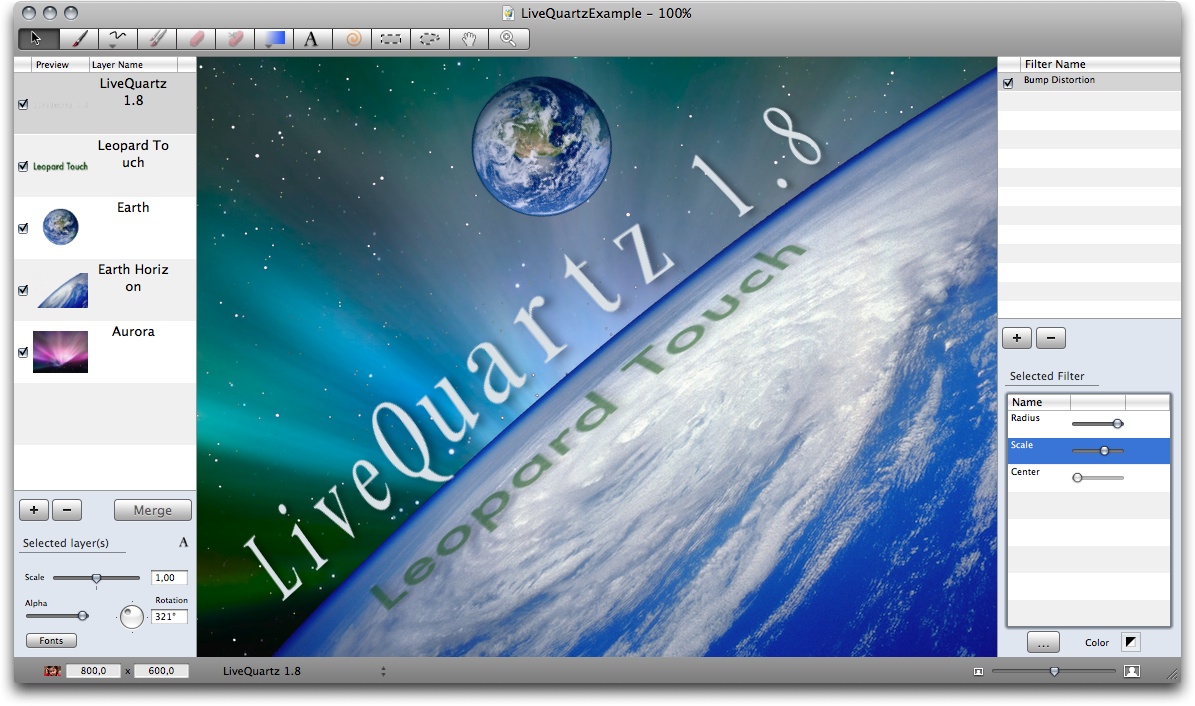
LiveQuartz Image Editor is a tiny free image editor that's something to look forward to when it matures. Simple interface (which needs some tweaks) and some handy features like the background eraser really shows off the potential for this little app. It could be handy for quick image adjustments when you don't want to launch something slow and bloated like photoshop or don't feel like messing with pixelmator.
Subscribe to:
Posts (Atom)


 Posts

