
Here's one I'll bet few people know.
Place your cursor over either the Viewer or the Canvas then hold down the H key.
You should see the Viewer or Canvas pop out at 50% size no matter what it was originally set to. Why? I dunno, it's probably some function or preference or something I've missed all these years. But it's pretty cool nonetheless and could be handy since 50% gives a clearer representation of your footage than odd numbered percentages, although 50% won't reveal interlacing as 100% does. Man I'm up late.
Friday, December 17, 2010


Thursday, December 16, 2010
iTunes, Gracenote and Client's Audio CDs
I get audio CD's from clients all the time which they've burned music or VO's or sound effects on to. The thing is unless you've told iTunes to:
A: Not launch when an audio CD in inserted.
B: Not to query Gracenote for CD/Track names
You'll end up with some pretty weird stuff as the name of the Disc and Track names. I find this pretty annoying which is why I've turned off all that stuff on iTunes here at the editing command center. But, when you are away from the Mothership and have to deal with this stuff you should be aware of what's happening.
Today, I was at a client's place and they decided rather than give me the audio cd they had in hand, one they burned off and quite likely the only copy, they decided they wanted to give me the tracks on a flash drive. Great! I love LOVE flash drives instead of optical discs. However...
When they handed it to me and I checked it right there and then on their computer the tracks were there, they played but there were named completely totally and bizarrely incorrectly. What had happened was that they had popped in the burned Audio CD, iTunes fired up, query'd Gracenote and decided it was someone's mix-tape CD (mix-CD?) from what was likely China. Whomever had made the CD originally, in fact, whomever had made the audio tracks, never named them I'm guessing.
Not a big issue if there's just a track or two but this audio CD had 40+ tracks of sound effects. The Finder had copied over the tracks as named by iTunes. I explained to them what happened, no, it's not a virus, no you haven't been hacked and no, they're not watching you on your webcam nor have they stolen your Facebook/Linkedin/Twitter/Whateverthehellsocialnetworkingcrapyouuse password (I should be as lucky). And you're right, I haven't "friended" you.
I told her I can't rename the tracks accurately. There are 40 of them and I don't know one from the other...yet.
So to fix this issue in the future I did a few things:
1. I hit Command + Comma in iTunes to bring up the Prefs.
2. Under General I unticked "Automatically retrieve CD track names from internet".
3. I went to username/Library/Preferences and deleted (emptied trash, my word was it full...had she ever emptied it?) "CD Info.cdib" which is where iTunes stores it's metadata on CD's it's looked up.
As an aside you can edit this file with something like BBEdit if you feel like it to remove the offending CD. You'll see a pattern to how they're listed but I wasn't in the mood and it was so large and Command + F (find) wasn't finding the misnamed names I didn't bother.
4. Eject the Audio CD.
5. Re-insert the Audio CD and saw that it was shown as "Audio CD" with "Track 01" etc...
6. Told her to (and showed her how) name the tracks what they needed to be named and to call me later. Yes, I'll leave the flash drive.
But what about the original audio files you ask? Surely they were named correctly? I imagine they would be if she could find them. I suspect they were in the trash I emptied. Go me!
A: Not launch when an audio CD in inserted.
B: Not to query Gracenote for CD/Track names
You'll end up with some pretty weird stuff as the name of the Disc and Track names. I find this pretty annoying which is why I've turned off all that stuff on iTunes here at the editing command center. But, when you are away from the Mothership and have to deal with this stuff you should be aware of what's happening.
Today, I was at a client's place and they decided rather than give me the audio cd they had in hand, one they burned off and quite likely the only copy, they decided they wanted to give me the tracks on a flash drive. Great! I love LOVE flash drives instead of optical discs. However...
When they handed it to me and I checked it right there and then on their computer the tracks were there, they played but there were named completely totally and bizarrely incorrectly. What had happened was that they had popped in the burned Audio CD, iTunes fired up, query'd Gracenote and decided it was someone's mix-tape CD (mix-CD?) from what was likely China. Whomever had made the CD originally, in fact, whomever had made the audio tracks, never named them I'm guessing.
Not a big issue if there's just a track or two but this audio CD had 40+ tracks of sound effects. The Finder had copied over the tracks as named by iTunes. I explained to them what happened, no, it's not a virus, no you haven't been hacked and no, they're not watching you on your webcam nor have they stolen your Facebook/Linkedin/Twitter/Whateverthehellsocialnetworkingcrapyouuse password (I should be as lucky). And you're right, I haven't "friended" you.
I told her I can't rename the tracks accurately. There are 40 of them and I don't know one from the other...yet.
So to fix this issue in the future I did a few things:
1. I hit Command + Comma in iTunes to bring up the Prefs.
2. Under General I unticked "Automatically retrieve CD track names from internet".
3. I went to username/Library/Preferences and deleted (emptied trash, my word was it full...had she ever emptied it?) "CD Info.cdib" which is where iTunes stores it's metadata on CD's it's looked up.
As an aside you can edit this file with something like BBEdit if you feel like it to remove the offending CD. You'll see a pattern to how they're listed but I wasn't in the mood and it was so large and Command + F (find) wasn't finding the misnamed names I didn't bother.
4. Eject the Audio CD.
5. Re-insert the Audio CD and saw that it was shown as "Audio CD" with "Track 01" etc...
6. Told her to (and showed her how) name the tracks what they needed to be named and to call me later. Yes, I'll leave the flash drive.
But what about the original audio files you ask? Surely they were named correctly? I imagine they would be if she could find them. I suspect they were in the trash I emptied. Go me!
Tuesday, December 14, 2010
Clients don't understand Container Formats

.mov, .mkv, .avi and others are containers which mean they're like sandwiches, I tell clients. (Did you see that? I began a sentence with a period, hah! Mrs. Roberts was wrong!) Not all sandwiches are good, and asking me for "a quicktime" or "an mov" or "an avi" is like asking me for "a sandwich on white bread". You've specified that you want a sandwich (video file), with white bread (container format) but you have yet to tell me what kind of sandwich you want (codec).
This seems to be the only way to get through to some clients. "You're ordering a sandwich with white bread but I don't know what kind of sandwich you want. PB&J? Mustard and Lettuce? Cheese and Anchovies?" "What do you recommend?" is usually their response. I dunno. What kind of sandwich does the thingy that you're going to play it on ask for? In the manual. Yes, that one, the one you didn't read.
Today I literally said to a particularly ornery client, "I need to know what you want between the bread, otherwise we're going to have to try a bunch and see which works and looks good." See, I'm making a video in an outdated format, using outdated software for a client's outdated hardware. This is the kinda fun that only a college education can provide, kids.
Things like H.264 solve this problem. They're PB&J sandwiches all the time. And something known as a "standard".
Thursday, December 9, 2010
Reduce AVI's skipping in VLC
During a break editing today a client decided to show me some of their past projects. They were encoded by someone at some point as .AVI's but they were skipping. While we were watching them she apologized and mentioned that all AVI's seem to skip for her.
So that got me curious and I played the same file with Movist which played back without skipping but I mentioned to her that Movist hasn't been updated for about 8 months so don't rely on it forever. However, the skipping problem was still bothering me in VLC. Checking her console logs I found mentions of first frame isn't a keyframe over and over aligning with the skipping. Not much to do about that as far as I know but there were some delay errors listed as well.
So delving into it's complex array of preferences I found the Caching Value which was set to 300ms. You can get there by hitting COMMAND + , (comma) in VLC and then clicking on the "All" radio button, Access Modules > File. Whew.
At the top you'll see "Caching value (ms)" and some number, likely 300. I just bumped it up to 1000 (1000 ms = 1 sec) and hit save.
The skipping is a lot better but there still is the occasional glitch as well as some very brief audio skips. I'm still not sure what can be done about them since Movist seems to handle the same file on the same hardware without issues. It may be some bug in VLC, I'm just not sure.
So that got me curious and I played the same file with Movist which played back without skipping but I mentioned to her that Movist hasn't been updated for about 8 months so don't rely on it forever. However, the skipping problem was still bothering me in VLC. Checking her console logs I found mentions of first frame isn't a keyframe over and over aligning with the skipping. Not much to do about that as far as I know but there were some delay errors listed as well.
So delving into it's complex array of preferences I found the Caching Value which was set to 300ms. You can get there by hitting COMMAND + , (comma) in VLC and then clicking on the "All" radio button, Access Modules > File. Whew.
At the top you'll see "Caching value (ms)" and some number, likely 300. I just bumped it up to 1000 (1000 ms = 1 sec) and hit save.
The skipping is a lot better but there still is the occasional glitch as well as some very brief audio skips. I'm still not sure what can be done about them since Movist seems to handle the same file on the same hardware without issues. It may be some bug in VLC, I'm just not sure.
Wednesday, December 8, 2010
Failure Rates of Solid State Drives
It's in French but this article has an interesting list of failure rates of SSDs (Solid State Drives). The translated version is here.
SSD's are really too young to really get a sense of their reliability in the long term but at least this is a start.
For the 2TB drives:
"- 9.71%: WD Caviar Black WD2001FASS
- 6.87% Hitachi Deskstar 7K2000
- 4.83%: WD Caviar Green WD20EARS
- 4.35% Seagate Barracuda LP
- 4.17%: Samsung EcoGreen F3
- 2.90%: WD Caviar Green WD20EADS"
SSD's are really too young to really get a sense of their reliability in the long term but at least this is a start.
For the 2TB drives:
"- 9.71%: WD Caviar Black WD2001FASS
- 6.87% Hitachi Deskstar 7K2000
- 4.83%: WD Caviar Green WD20EARS
- 4.35% Seagate Barracuda LP
- 4.17%: Samsung EcoGreen F3
- 2.90%: WD Caviar Green WD20EADS"
There is more info at the site.
Friday, November 26, 2010
Final Cut Studio $799 at B&H
B&H has Final Cut Studio for $799 if you're looking for a copy for that special someone.
Wednesday, November 24, 2010
Nvidia's GeForce GTX 595?
Hardmac has an interesting bit of info about a potential future graphics card.
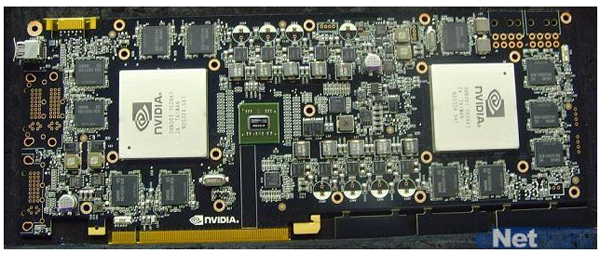
They're calling it the GeForce GTX 595, but the real interesting thing is that the photo of it shows two Fermi GPUs on the board. If true, that'll be some considerable power for, as they mention, a future version of Final Cut Suite.
Combine that with the recent rumor of a Final Cut Studio update sometime around April 2011 and things start becoming interesting.
They're calling it the GeForce GTX 595, but the real interesting thing is that the photo of it shows two Fermi GPUs on the board. If true, that'll be some considerable power for, as they mention, a future version of Final Cut Suite.
Combine that with the recent rumor of a Final Cut Studio update sometime around April 2011 and things start becoming interesting.
Thursday, November 18, 2010
Not Enough Disk Space In Target Folder error
I ran across this error in DVD Studio Pro today:
"Not Enough Disk Space In Target Folder"
But, the fix is surprisingly simple; basically it means that the "build" folder isn't large enough to hold the VIDEO_TS folder that DVD Studio needs to make before burning the DVD. Here's a quick way to fix it:
01) In DVD Studio Pro hit Command + , (comma) to open the prefs.
02) Goto the "Destinations" button/tab.
03) For "Show:" select "Build/Format"
04) For "Location:" select someplace that has at least 5GBs of space, preferably 10 Gigs.
05) Tap OK.
"Not Enough Disk Space In Target Folder"
But, the fix is surprisingly simple; basically it means that the "build" folder isn't large enough to hold the VIDEO_TS folder that DVD Studio needs to make before burning the DVD. Here's a quick way to fix it:
01) In DVD Studio Pro hit Command + , (comma) to open the prefs.
02) Goto the "Destinations" button/tab.
03) For "Show:" select "Build/Format"
04) For "Location:" select someplace that has at least 5GBs of space, preferably 10 Gigs.
05) Tap OK.
Wednesday, November 17, 2010
The AUDIO_TS Folder or Why I didn't sleep last night.
Clients never cease to amaze me. Yesterday I burned off a DVD Review copy for a client and they couldn't play it. Ok, I said to myself, no biggie it was probably a finicky player which thought it had bad disc or bad burn, which happens. I asked them if they tried the backup disc I had also sent along.
"Oh yeah, that one wouldn't play either." At least they were nice about it.
Potential problems filtered though my head. I checked the file structure of the image I kept just in case and it seemed okay; I had tested the DVDs (both of 'em) on a stand-alone player here before sending them and both worked, so I was stumped. A few more rounds on the phone and just out of pure curiosity I asked what they were trying to play it on. "The lobby dvd thing there." Okay, almost helpful. So I decided to ask the exact model number of the player they were using mumbling something about "firmware" and pretending to be interested in some obscure facet of DVD Player technology they couldn't possibly understand.
Googling the model number of this player revealed it was older than some stromatolites which inexorably started me falling down the WikiHole™ until I discovered this little tidbit of info:
The AUDIO_TS folder is there for backwards compatibility with older-than-dirt DVD Players even though it's used for DVD Audio Discs (sometimes called DVD-A discs) which hardly anyone one makes anymore.
Wha? Yup, their DVD Player was so old that it required an AUDIO_TS folder on a video only DVD. Silly me had not included one because I had never needed one before in the history of me burning DVDs for clients.
So lesson here is to really never underestimate client's hardware.
If they have any:
"Yeah all of our employee laptops have DVD players in their laptops."
Oh, okay great, I'll make 1000 copies for you guys by the end of next week."
NEXT WEEK.
"No those are CD-ROM drives, not DVD Players in your employee laptops. Where's my check?"
Sunday, November 14, 2010
Netflix Key Commands & Hidden or Secret options
A client was showing me a "look" they were going for by showing me a bit of a film on Netflix. While we were watching it I missed the chair I was trying to sit down in, planted my hand on the keyboard and the video paused and I saw Netflix change to it's fast forward and rewind preview thumbnail screens.

Experimenting around I found that like Spacebar, Return will Play/Resume playback but what's more, is that if you hit Shift + Return (Control + Spacebar works also) you'll see Netflix switch to it's thumbnail fast forward rewind interface and even more the Left and Right Arrow Keys will advance and rewind the video (thumbnails) by 10 seconds at a time. Hitting Return will start playback at the new location.
Yeah yeah, not a Final Cut Studio tip but I did stumble upon it (literally) and it was pretty handy to find certain frames that the client wanted to show me.
UPDATE:
Some other interesting things you can do in Netflix.
1. Right Click on a streaming video and select "Silverlight Preferences": lots of stuff to monkey with here. This only seems to work when NOT in full screen mode.
This actually launches a small app located at: /Library/Internet Plug-Ins/Silverlight.plugin/Contents/Resources/Silverlight Preferences
2. I couldn't get it to work on a Mac but apparently you can hold down SHIFT and Right-Click on a Windows machine to bring up a secret debug menu.
3. Diagnostics Menu: Shift + Control + Option + M brings up the hidden diagnostics menu. Again, this works when not in full screen mode.
A: Shift + Control + Option + S = Stream Menu
B: Shift + Control + Option + D = A/V Stats
C: Shift + Control + Option + L = Logging Window
D: Shift + Control + Option + P = Player Info Window
E: Shift + Control + Option + C = Frame Rate + Mysterious Numbers. Green Controls. (Hit this in not full screen mode [windowed mode I guess?] then drop into full screen mode.)

Yeah yeah, not a Final Cut Studio tip but I did stumble upon it (literally) and it was pretty handy to find certain frames that the client wanted to show me.
UPDATE:
Some other interesting things you can do in Netflix.
1. Right Click on a streaming video and select "Silverlight Preferences": lots of stuff to monkey with here. This only seems to work when NOT in full screen mode.
This actually launches a small app located at: /Library/Internet Plug-Ins/Silverlight.plugin/Contents/Resources/Silverlight Preferences
2. I couldn't get it to work on a Mac but apparently you can hold down SHIFT and Right-Click on a Windows machine to bring up a secret debug menu.
3. Diagnostics Menu: Shift + Control + Option + M brings up the hidden diagnostics menu. Again, this works when not in full screen mode.
A: Shift + Control + Option + S = Stream Menu
B: Shift + Control + Option + D = A/V Stats
C: Shift + Control + Option + L = Logging Window
D: Shift + Control + Option + P = Player Info Window
E: Shift + Control + Option + C = Frame Rate + Mysterious Numbers. Green Controls. (Hit this in not full screen mode [windowed mode I guess?] then drop into full screen mode.)
Subscribe to:
Posts (Atom)


 Posts
Posts

